Restock Needed
Automated purchasing recommendations based on target inventory coverage and lead times.
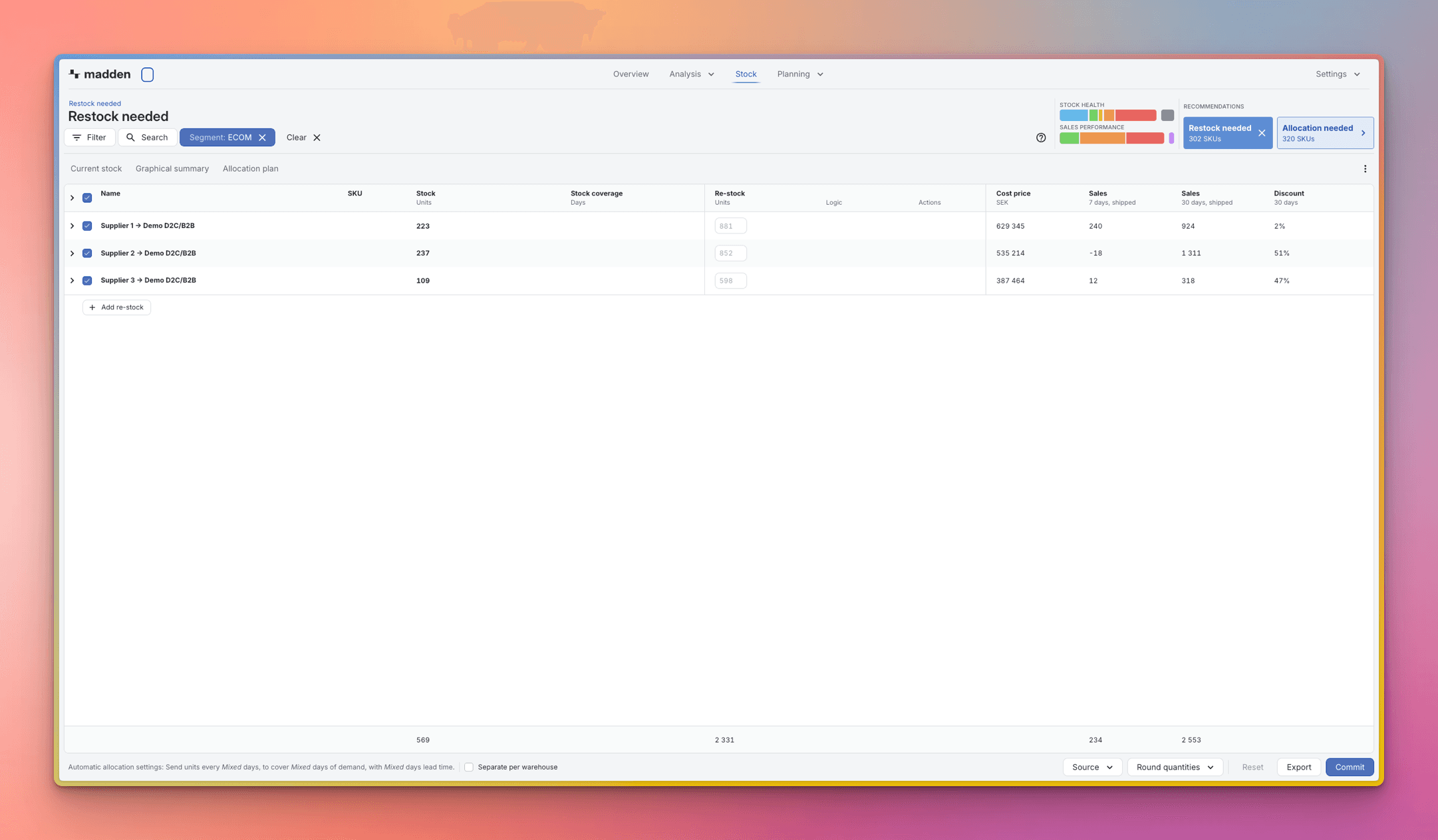
'Restock Needed' is the automated tool that generates purchasing suggestions for your inventory. It is designed for replenishment users who focus on immediate, short-term stock needs and do not utilize the full Planning Module (which involves setting sales plans and long-term forecasts). This view is particularly useful when you do not need to take long lead times into consideration, allowing for faster, simpler ordering decisions.
The logic that drives 'Restock Needed' determines the quantity of stock required to meet your minimum desired safety net.
Important: To ensure accurate recommendations, you must set the core parameters (Target Coverage, Target Lead Time, and Frequency) for each warehouse. Please review our guide: [Link to Configure Warehouse Settings for Allocation Rules].
2. How the Recommendation is Calculated
The goal of the Restock calculation is to generate a Purchase Quantity that fills the inventory gap up to your coverage target.
Madden's logic calculates your total stock need by covering two critical periods: the Demand During Lead Time (sales expected while your order is in transit from the supplier) and the Target Buffer (the safety stock, or Target Coverage days, you want to maintain after the order has arrived).
The system automatically subtracts your current stock (and any quantities already inbound) from that total need. This ensures the resulting Purchase Quantity is the exact, efficient amount required to yield the specified number of coverage days.
3. Reviewing and Creating a Purchase Order
The 'Restock Needed' view makes it simple to analyze the system's recommendations and turn them directly into purchase orders.
Step 1: Analyze Recommendations
The main table lists all products that the system has identified as needing replenishment.
Key Data: The primary metric shown is the suggested Re-stock units (Purchase Quantity), along with Sales the past 7 and 30 days.
Tooltips: All fields displayed are fully explained via tooltips when you hover over them, available directly within the Madden app—look there for definitions!
Filtering: Use the standard filter panel on the left to narrow the list by supplier, category, or warehouse if you are placing an order for a specific location.
Step 2: Create the Purchase Order
Review the list and select the items you wish to purchase using the checkboxes.
Adjust the Re-stock Units for any item if you need to place a smaller or larger order than recommended.
Once satisfied with your selection, click the Commit button (found in the bottom right corner).
Madden will consolidate the selected items into a new Purchase Order, which you can then review, edit, export, and send to your connected ERP system.
Outcome: Creating the purchase order immediately moves the approved quantities to the Inbound stock column in the Stock Module for the relevant warehouse, reflecting the order placed.