How to Configure Your Overview Dashboard
Quickly spot trends, track performance, and jump into detail – all from one place.
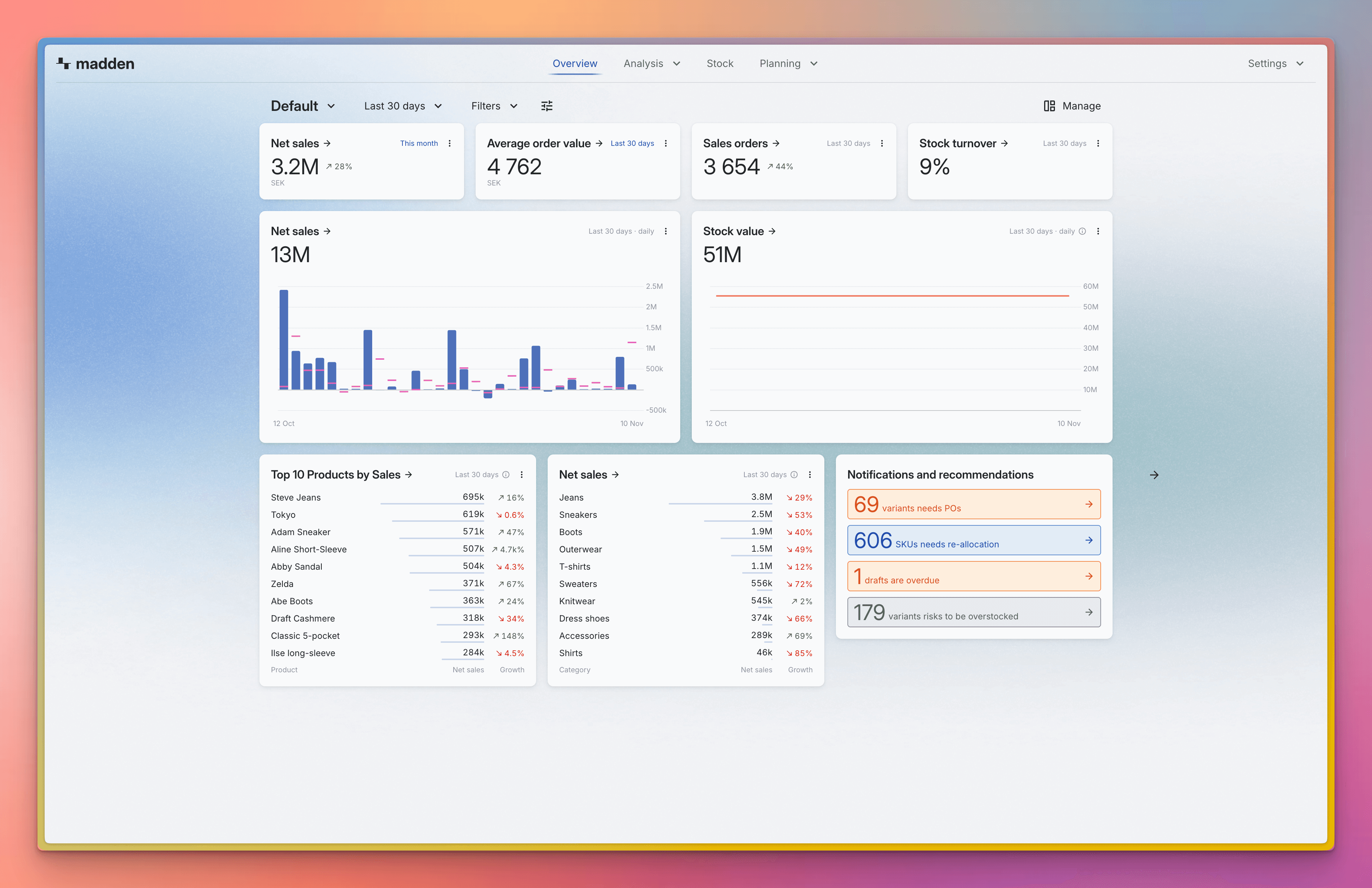
The Overview page is your central dashboard in Madden—the first thing you see when you log in. Customizing it ensures you always see the KPIs and trends that matter most to you, so you can act faster without digging through multiple modules.
Prerequisites
You must have Admin privileges or specific user permissions to manage the Overview.
Customize Your Widgets
Your default Overview comes pre-filled with widgets, but you can easily tailor them to match your priorities.
Enter Edit Mode: Click Manage in the top right corner to enter edit mode.
Edit an Existing Widget: Click on any widget to open its configuration panel. From here, you can:
Change its Data Source (e.g., Sales, Stock, Margin).
Switch between Value and Units or Net and Gross price.
Add comparisons like vs. last year.
Set Custom Dates or Static Filters (see Pro Tips below).
Rename it for clarity.
Add New Widgets: Click Add Widget and choose one of the four available types:
Widget Type
Purpose
KPI
A single key number with an optional trend line (e.g., Stock Turnover).
Chart
Visualizes performance over time (e.g., sales history, margin development).
Table
Ranked lists that show data per grouping, such as Top Products or Stores.
Notifications & Recommendations
Actionable inventory planning prompts, such as alerts for required Purchase Orders (POs), recommended re-allocations, and early warnings about overstock risks.
Organize: Rearrange widgets by dragging them so your most important insights are at the top, or remove any you don’t need to keep the page focused and easy to scan.

Create Alternative Views
Once your default view is working well, you can create extra Views for specific focuses—like sales, stock, or seasonal campaigns. These views are shared across your company account, but you choose which one you see.
Click the View name (usually located in the top left).
Select Manage views —> Add view.
Name the new view (e.g., "B2B") and arrange its widgets for that specific purpose.
Switch back to your main dashboard when the campaign is over using the arrows on the left and right sides of the dashboard.
Filter Your Data
The date range and filters at the top of the page apply to all widgets in the current View. Adjust them when you want to focus on a specific period, store, or segment.
Date Range: Select presets like Last 12 Months or choose a custom range using the date picker.
Filters: Use filters for Store, Category, Collection, or Season to instantly narrow down all displayed data.
Transaction Timing: Use the dropdown to select the transaction date you want to filter by: Order Date, Shipment Date, or Invoice Date.

Pro Tips for Customization
Click to Drill Down: Widget titles link directly to the Analysis module, taking your current filters and dates with you. This saves you the trouble of setting up the same filters twice.
Balance KPIs and Context: Pair a key KPI number with a corresponding Chart or Table so you see both the results (the metric) and what's driving them (the trend or the top items).
Use Static Filters for Focus: When configuring a widget, you can set a Static Filter to make that widget ignore the global filters. This is perfect for displaying critical side-by-side data, like "Top 10 Products in the UK" next to "Top 10 Products in the EU."