Navigating in Madden
Find what you need by navigating and filtering out what matters to you
Navigating within tables
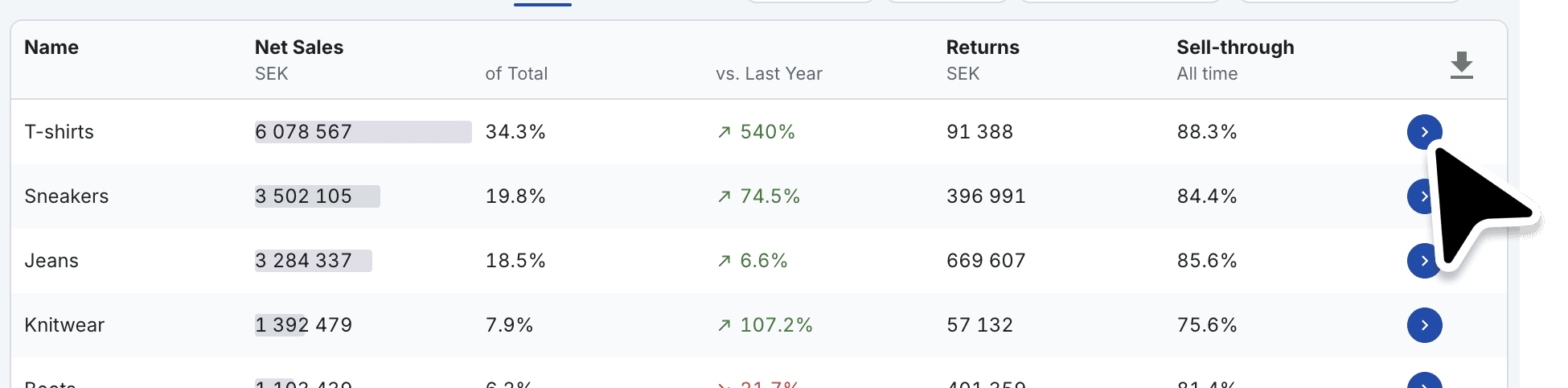
Clicking the blue arrow at the end of a row allows you to navigate down through your hierarchy. From higher levels such as brands, and categories, to specific details such as individual products, variants, and SKUs.
Breadcrumbs to quickly go back
After navigating down your hierarchy you can quickly jump back to a previous level by clicking the breadcrumbs above the title in the header of the page.

Filter your data
Using filters is a great way to focus on specific data. Open the filter drawer on the left-hand side to start isolating data by transaction, location and product dimensions, e.g. segments, stores, markets, specific products and many more (filter availability depends on the module you are using).
Click on a filter to open it and search its options. Use the multi-select capability to sort out multiple related options. E.g. searching your "Variants" for "Boot" will show you all variants including "Boot" in their name (either at the start, end or in the middle). You can then use the "Select all" option to mark them all. Selecting these filters will update your table to only show the data related to your selected criteria.
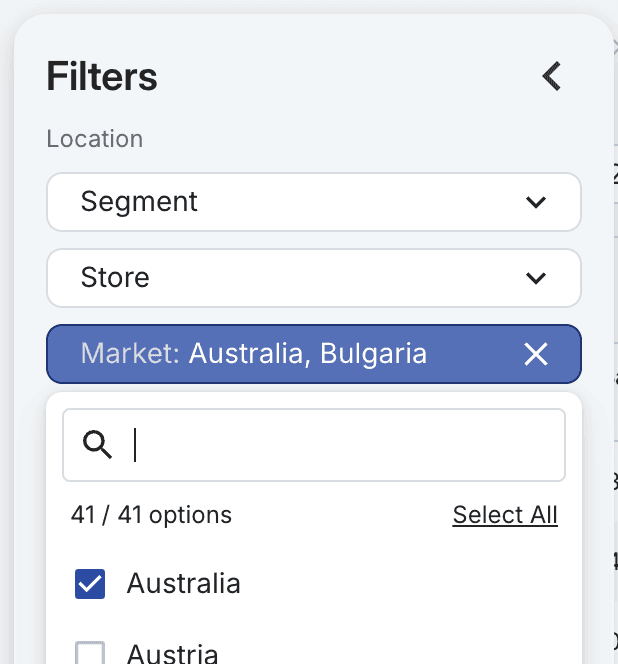
Pro tip: You can also use this to do an inverse selection. Use "select all" on the top level to select all options, then deselect the options you want to have excluded, either by scrolling through the list, or using the search box and choose "Deselect all". This will deselect all the filtered out options.
Sorting data in tables
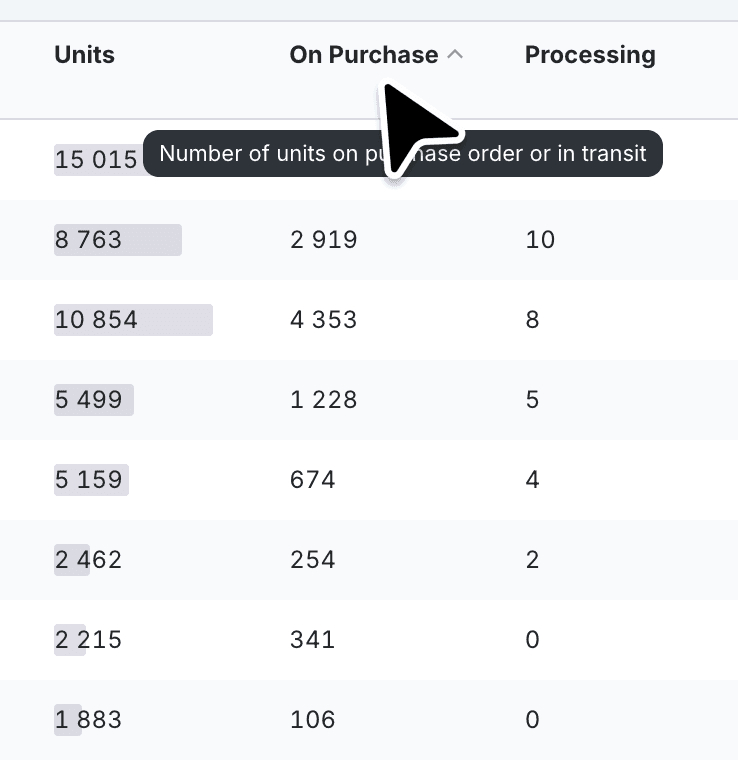
To sort data within a table, click any column header to sort on its data point. Hover a column header to show a brief explanation. This approach is useful e.g. for identifying which items are performing well or not, based on any metrics available in the current table.
Grouping your data
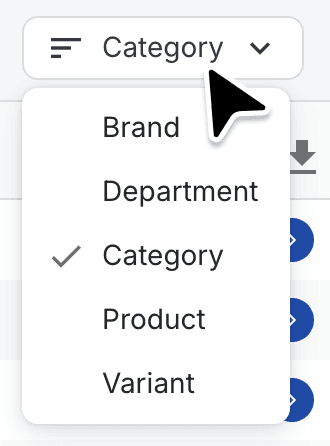
To quickly jump to another hierarchy level within your filtered data, use the "Group by" drop-down to select your preferred level.
Filter by date
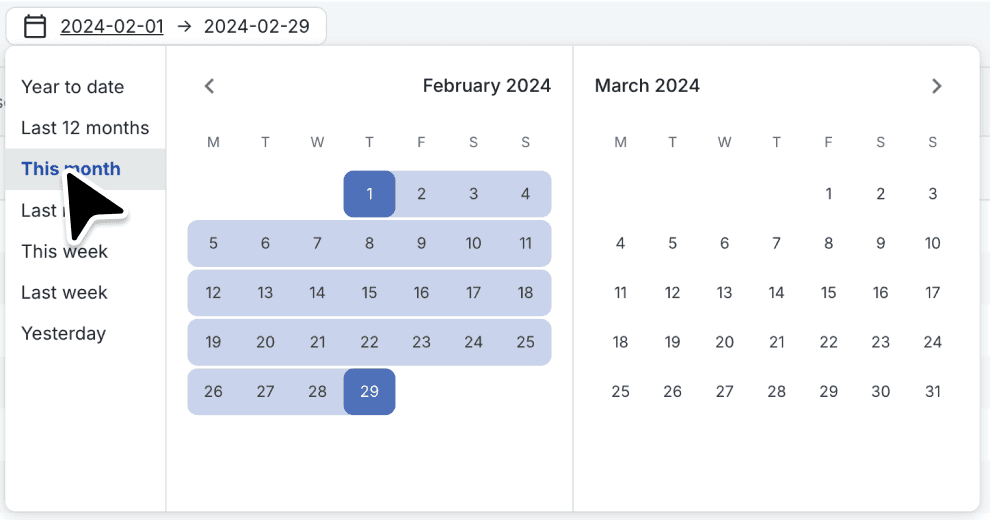
Use the date picker to filter out the data within a specific time period. There are multiple pre-selected options depending on what module of Madden you are within. But you can also manually select the date range you would prefer. This selection will instantly refresh your data view to match the chosen time frame.