Introduction to Planning
The first steps you need to get started with inventory planning
This guide will walk you through the steps to generate the very first sales plans and draft purchase orders in Madden.
Activate Articles for Planning
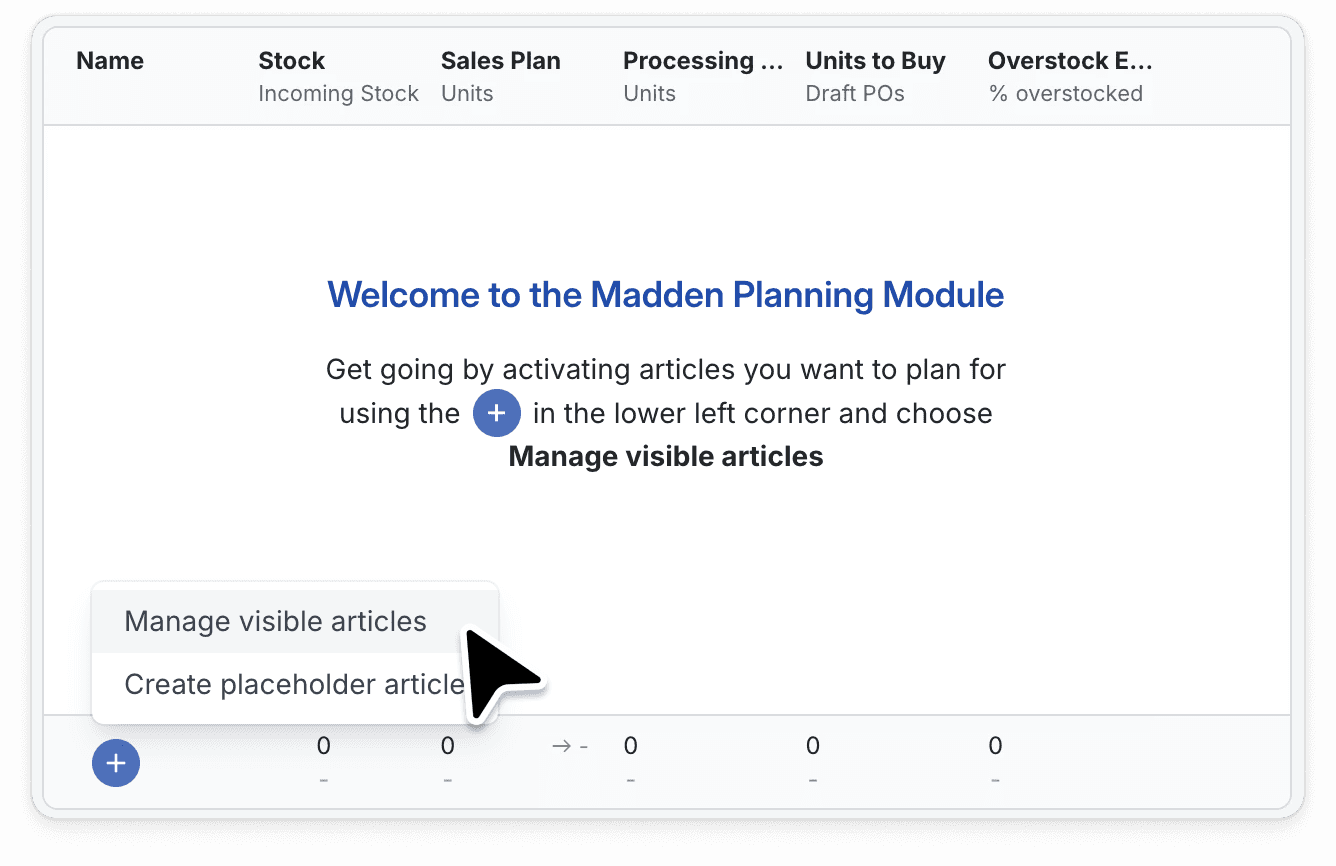
When you first access the planning module, you'll encounter an empty table. To begin:
Navigate to the bottom left corner of the interface.
Select Manage visible articles
Search for and select the articles you want to plan for. If you are new to Madden, we recommend to start out by selecting a few articles you anticipate will be key performers and add more as you go.
Navigate Through Your Data
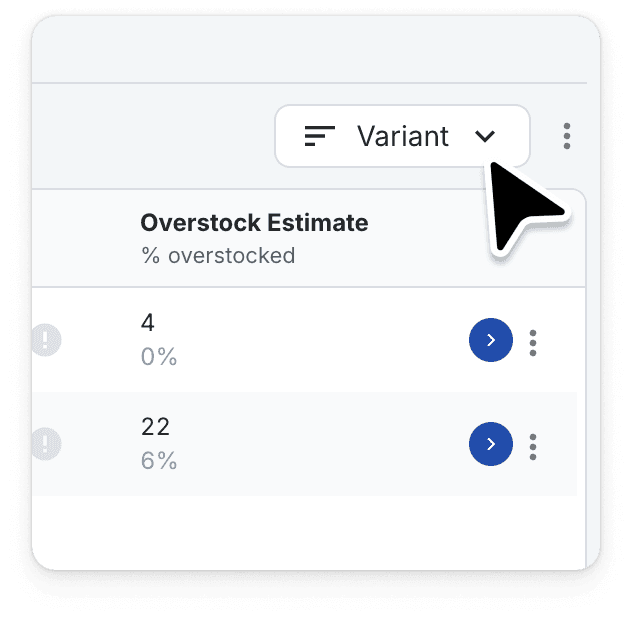
The table allows you to view your data at various hierarchy levels. You can:
Use the arrow icons to drill down into more detailed views, from brand level down to products and variants.
Utilize the hierarchy picker for quick navigation across different sections of your inventory.
Setting a Sales Plan
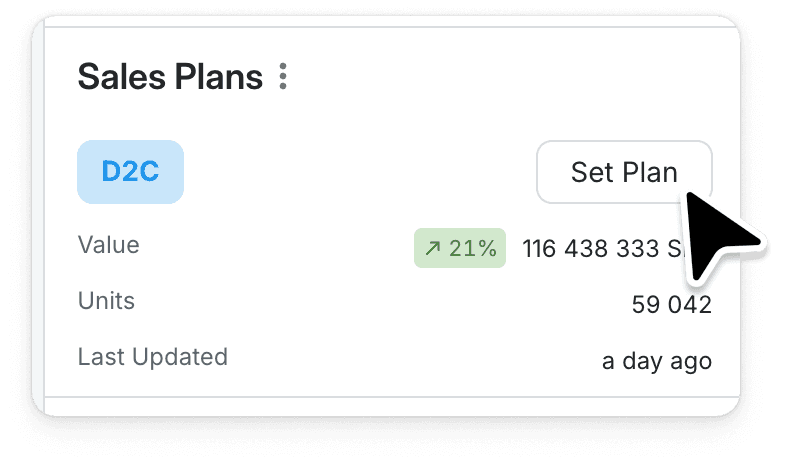
After selecting a product or variant, click Set Plan on the right-hand side to start.
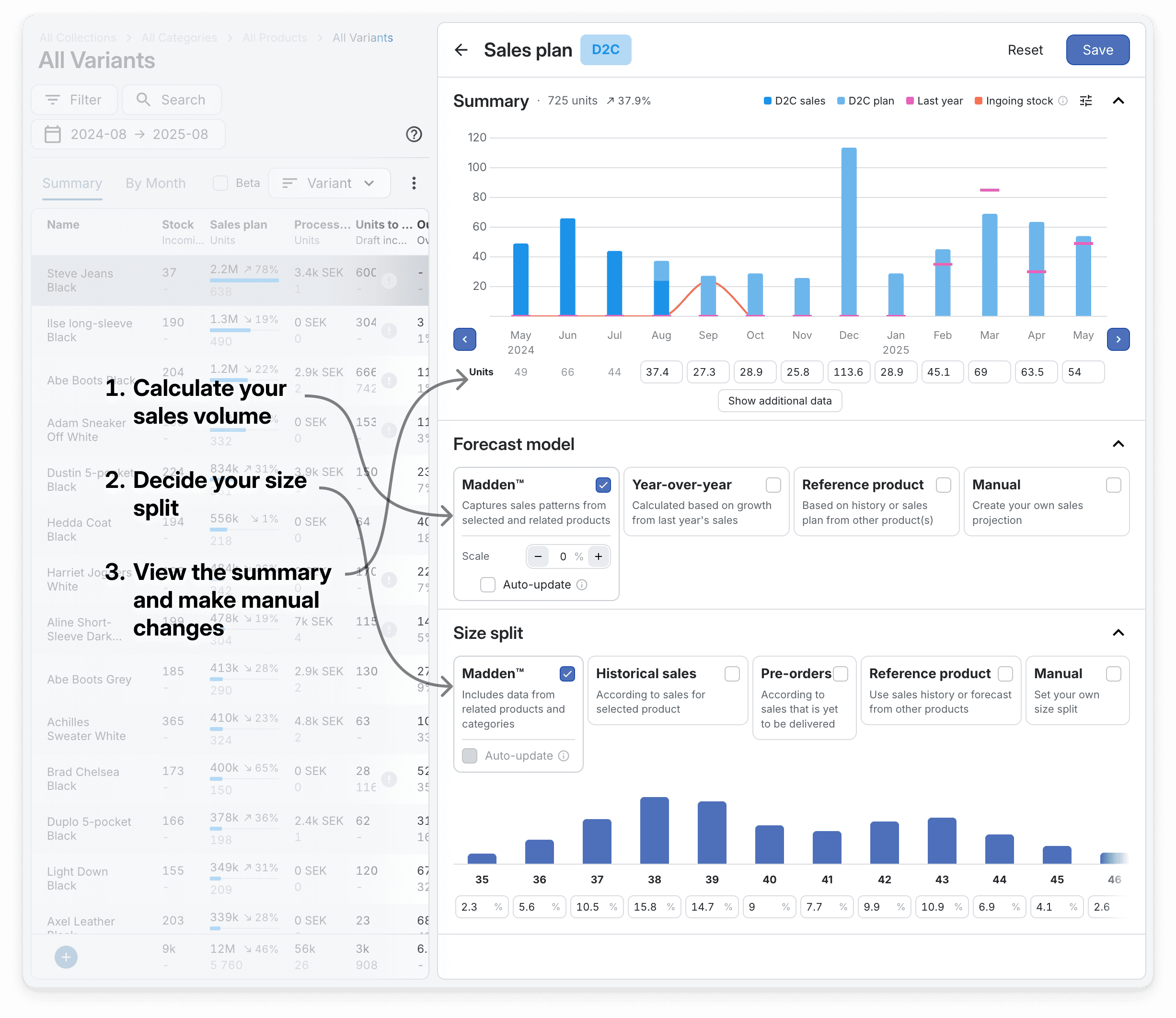
Depending on the variant you've selected, or if you have selected multiple variants, the options to create your sales plan will vary. Below is a quick summary of some of the setting that can be available.
Choosing forecast model
You'll be presented with different methodologies for calculating your sales plan depending on the type of product(s) you've selected. These may include:
Madden, which leverages historical data from both product and category, considering potential stock-outs and uses machine learning models to make use of all this data. Not available for products without sales history.
Year-over-year, setting a plan based on a previous years sales and an anticipated yearly growth.
Reference product, base your sales prediction on either historical sales data or future sales plan from comparable products.
If you want, you can manually adjust each months forecast to better align with your expectations. This is important to tailor the sales plan to your unique insights and market understanding.
Optionally, you can also review the data under Show additional data.
Discount, see that it aligns with your expectations, it is automatically calculated based on historical sales.
Ingoing stock and stock turnover is calculated based on your set purchase plan.
Choose a size split
When editing a single variant, you are able set the size split.
Various calculation options are available, such as Madden's recommended split based on statistical models, or using pure sales history.
Review your size split choices, select the most appropriate one for your needs, and you are ready to save your sales plan.
Create draft Purchase Orders
After saving your sales plan(s) you're able to generate optimised purchase orders.
Generate Purchase Orders
To get started, select the product you want to plan for and click "Create draft POs" in the bottom right corner of the planning module.
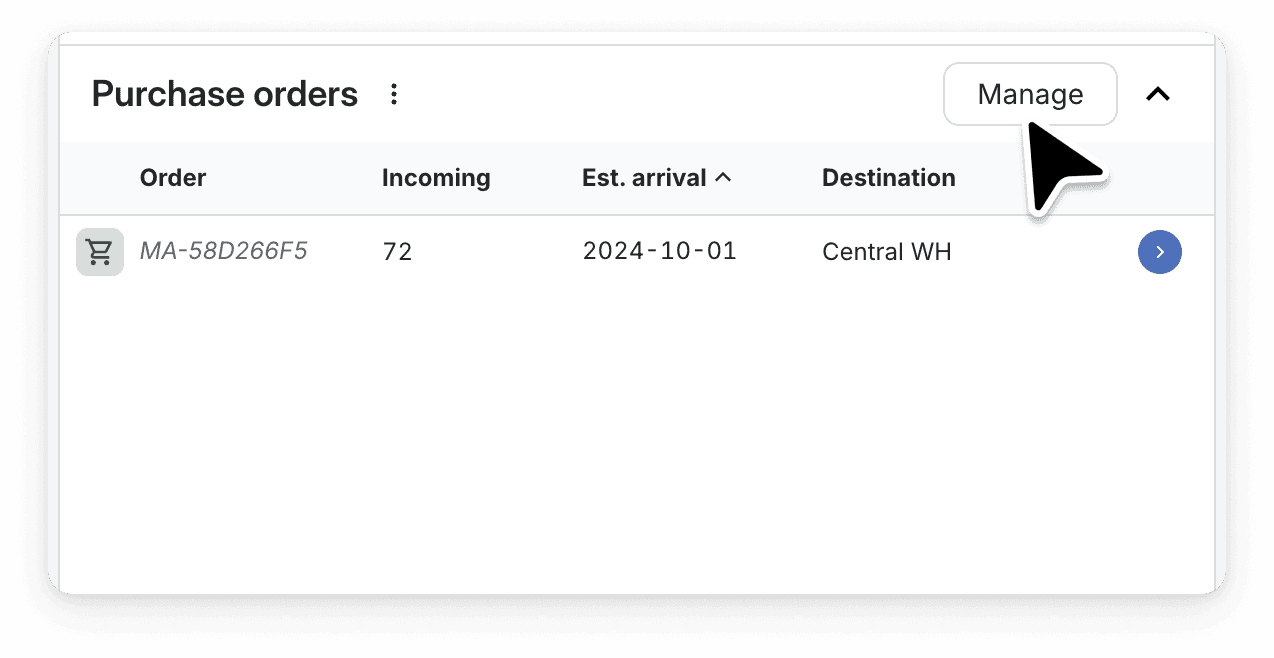
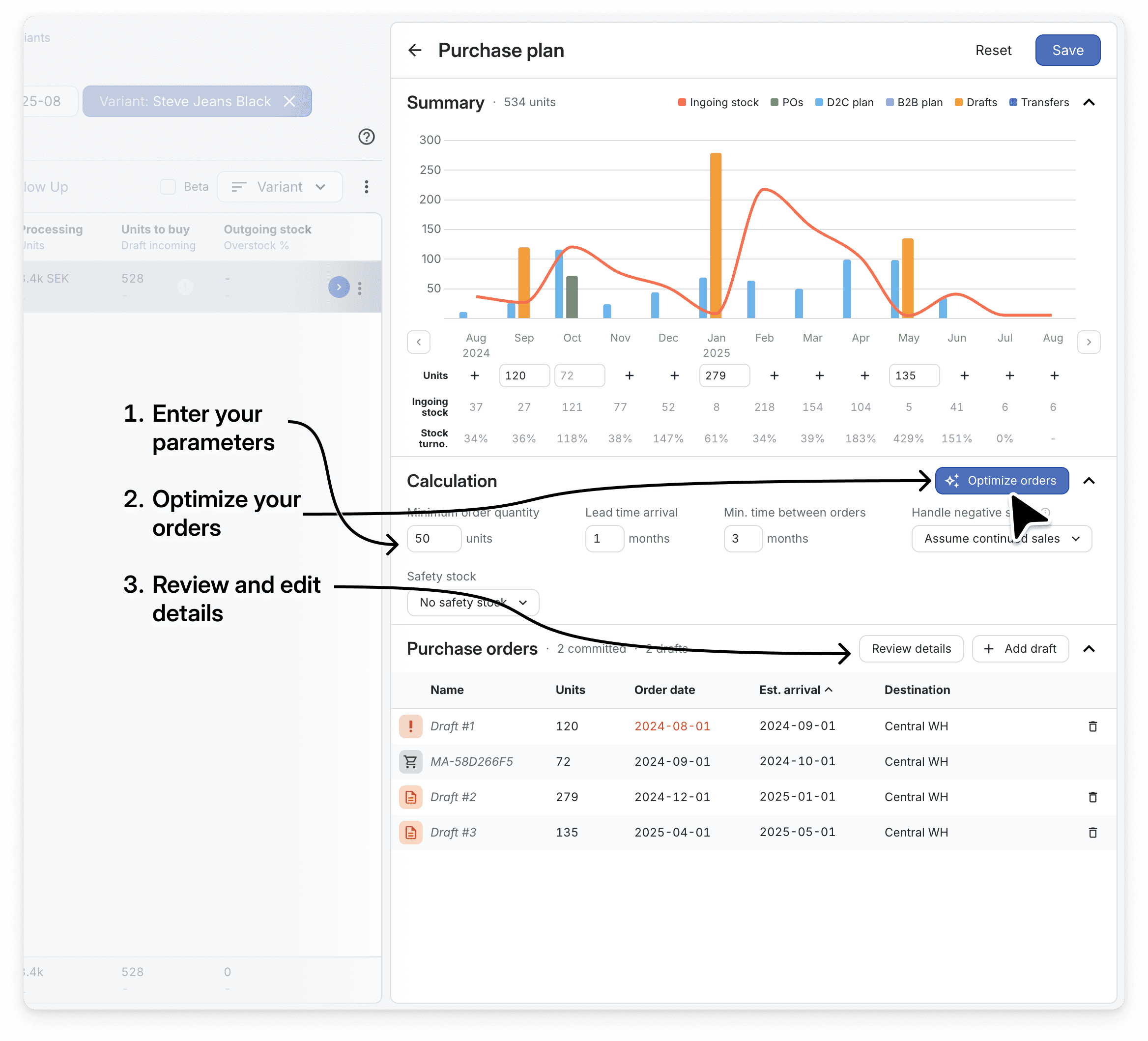
In this view you can manage your purchases and set up new draft purchase orders that you later can convert into final purchase orders by "committing" them.
Your draft orders are optimized from the set Lead time (ETA), Minimum order quantity (MOQ) and minimum time between orders.
If you want you can also make sure you have a Safety stock margin, defined either as a number of months (continious forward looking) or as a sell-through target towards a specific date.
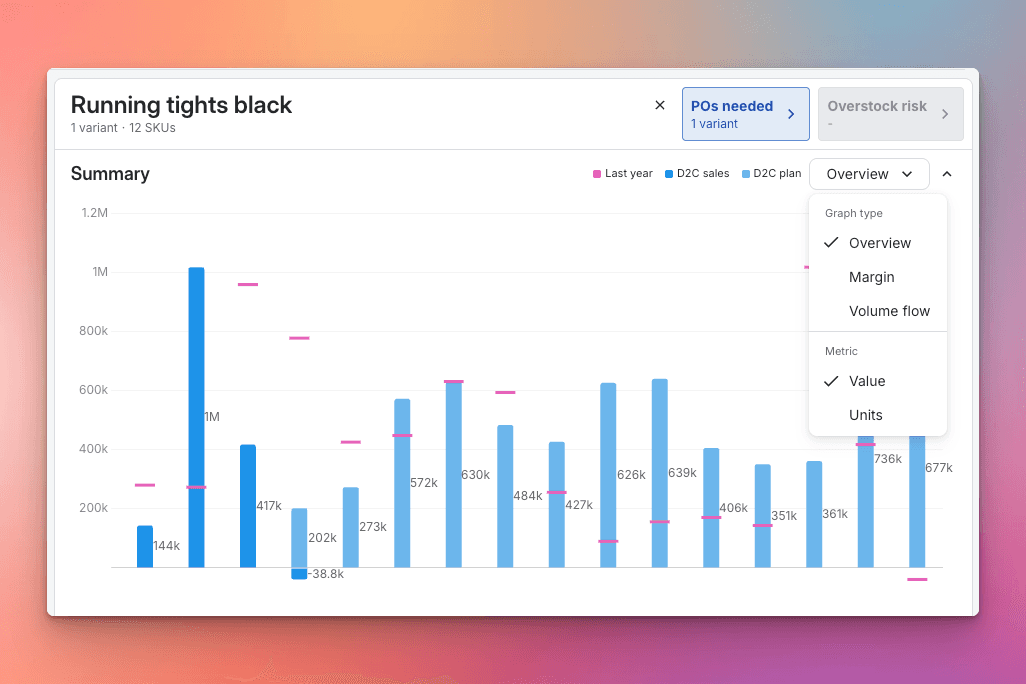
Click Optimize orders to update your planned purchases and see an update estimated stock level. The stock level in the graph visualizes the ingoing stock each month.
If some, or all, sizes of the active variant will run out of stock during the lead time a warning will be displayed. To control the behavior of estimated sales during the lead time, use the Handle negative stock options.
Assume continued sales is useful if you anticipate a restock effect when the items are back in stock. Your set sales plan will not be altered.
Assume missed sales will instead reduce any sales planned during the time the stock is at or below zero. These missed sales will be visualized in the graph.
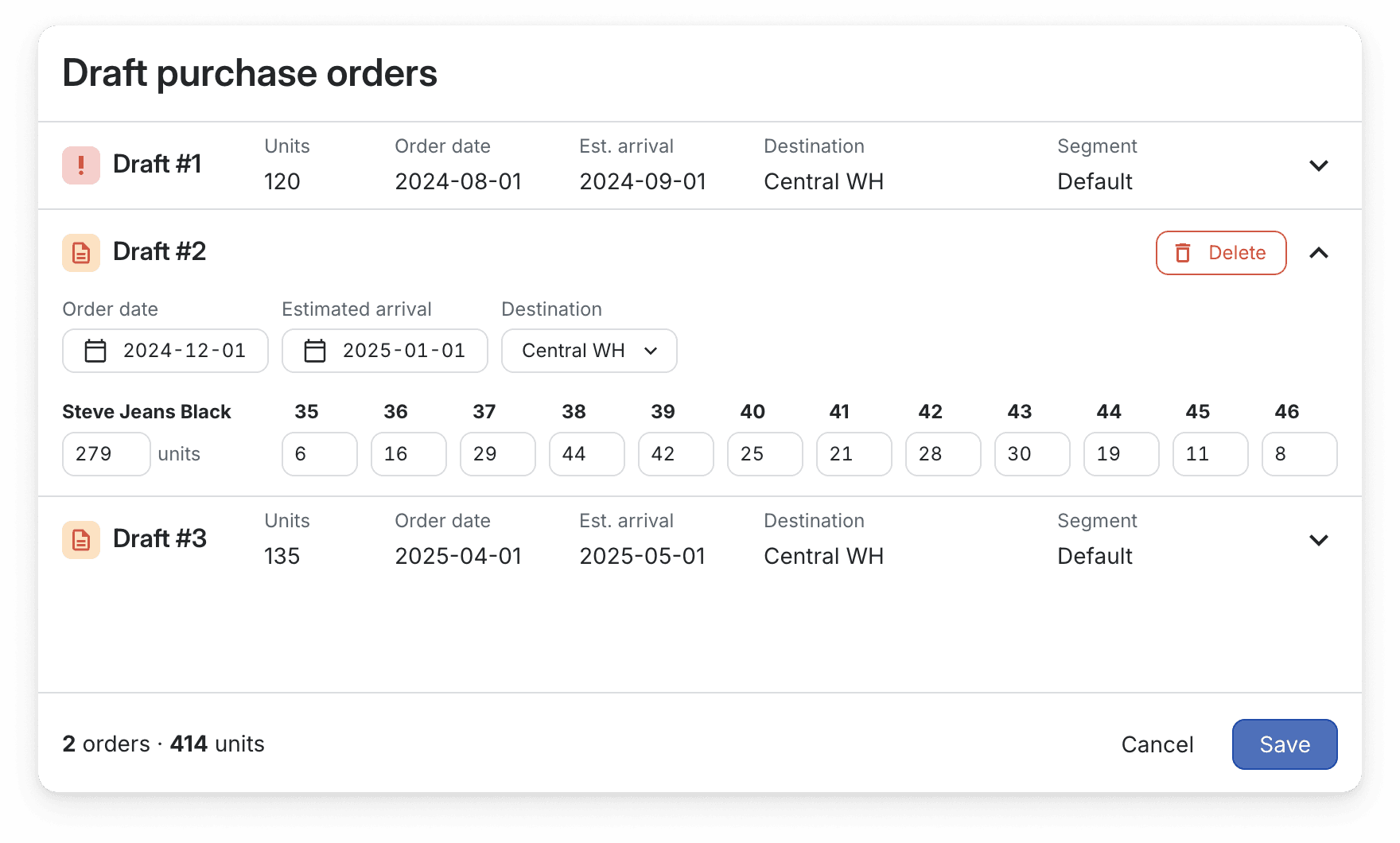
Review Purchase Orders
If you want to see in detail what your purchase orders includes, click Review all or review any specific purchase order.
Evaluate the initially suggested purchase plan, focusing on parameters like stock turnover and safety stock coverage.
Review and finalize your orders, specifying details like warehouse destinations and order volumes.
Saving this purchase order updates your inventory forecasts and allows you to prepare effectively for upcoming sales periods.