Manage Product Information
Learn how to view and update your product information to get the best experience in Madden
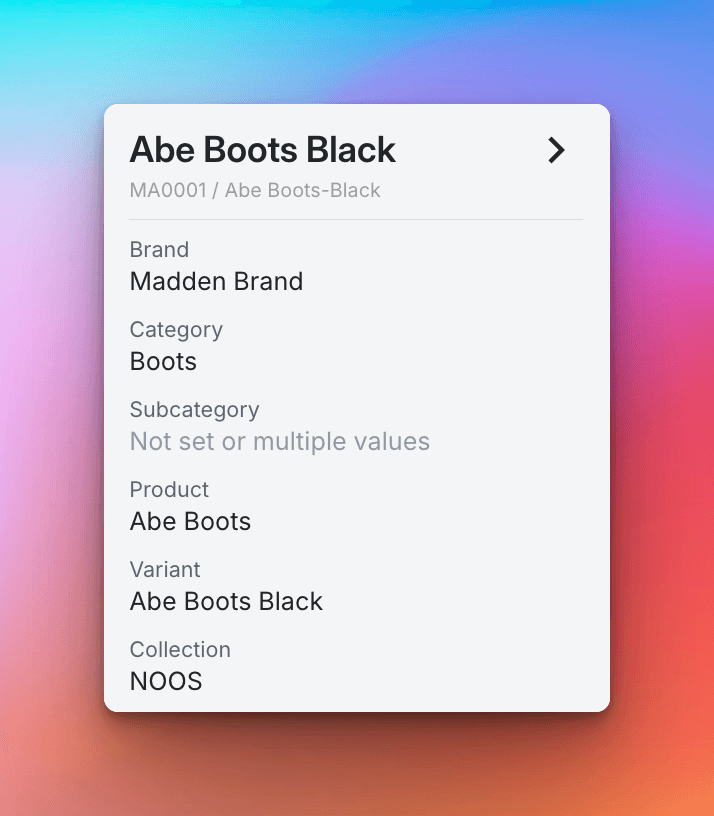
Good product information is important to get the best possible recommendations in Madden, as well as for your user experience. Most product information is automatically synced with your ERP/e-commerce system, but fields that you have selected not to be synced, as well as Madden-specific information, can be update directly in Madden.
This guide walks you through how to manage your product information, to help you keep your data up to date and accurately reflected in your analysis.
Using the Product Card
Access the Product List: Navigate to any list where your products are displayed.
Open the Product Card: Click on the information ("info") button next to the product name. This action opens a sidebar on the right with all related information. If some information is missing or incorrect, continue by editing it.
Edit Product Information: Click on the "Edit" button within the drawer to modify any of the product data fields.
Save Changes: After making the necessary edits, click "Save." Note that changes propagate downwards, e.g. if you update the cost price for a variant, the underlying sizes will inherit that information.

Using the Product List Interface
Navigate to the Product Page: Find this page under the account menu or main navigation bar.
Search for Products: Use the search function to locate specific SKUs or products you wish to update.
Select Products: Toggle and select the products or categories you're interested in updating.
Bulk Update: Click on "Edit," in the upper right corner and in the "edit all" box that appears, make your edits to the desired fields.

Updating Through Excel
For those who prefer or need to update numerous products at once, using Excel or a similar spreadsheet editor might be more efficient.
Export Product Table: First, use the export button in the product interface to download your current product table.
Edit in Excel: Open the downloaded file in Excel and make your updates.
Keep the column headers and sheet names unchanged.
Delete any rows you don't intend to update.
Save and Import: After saving your edits in the Excel file, return to Madden and select "Import" to upload the updated file.
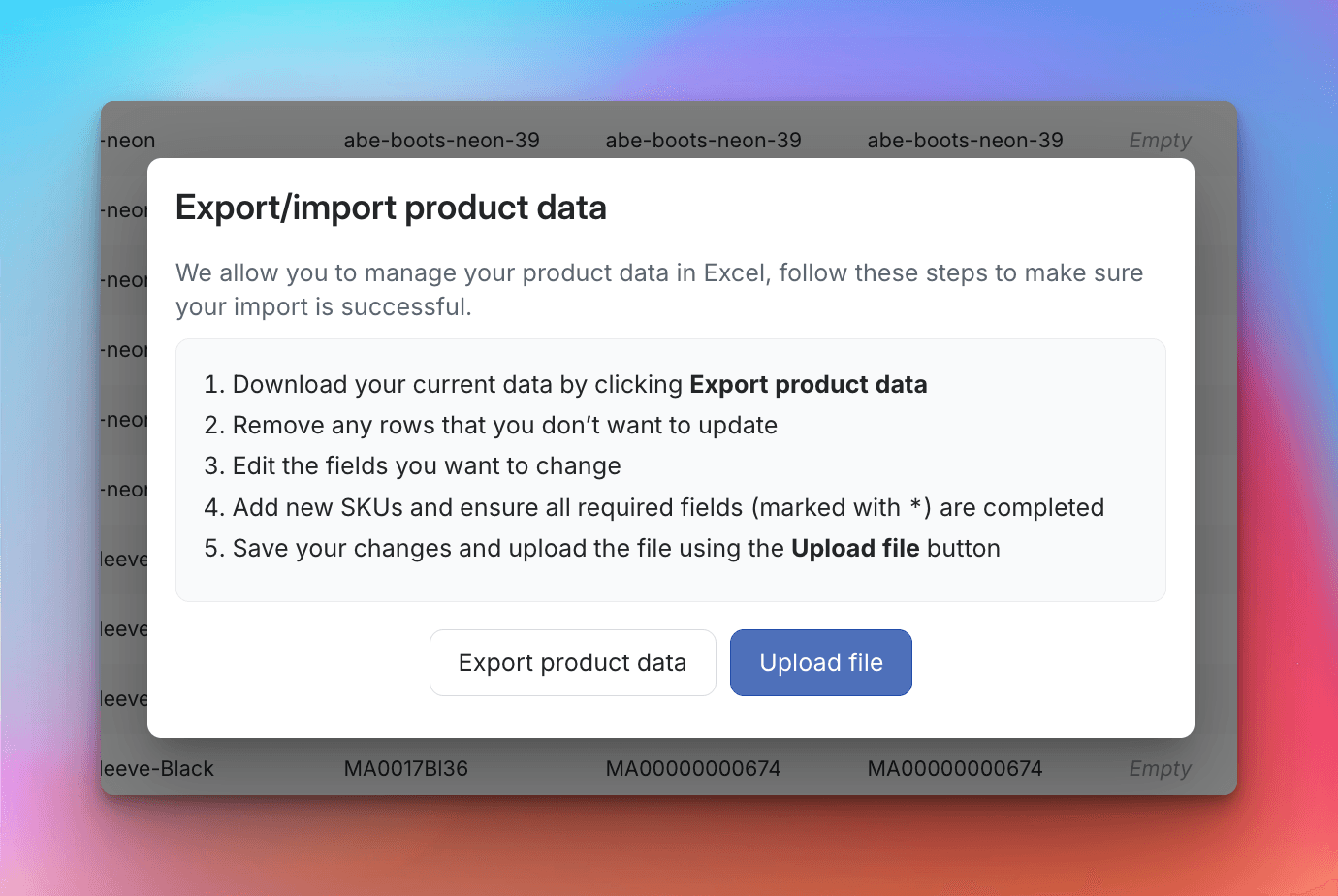
This updated product information will automatically apply to all historical transactions and stock events within Madden. If you're updating a large number of items, be prepared for a delay before all changes are fully integrated into the system.
By keeping your product information current and accurately reflected in Madden, you enhance your overall user experience and ensure the recommendations and analyses provided are as relevant and useful as possible.