Configure Warehouse Settings
Determine how Madden views your warehouse locations and manages stock flow between them.
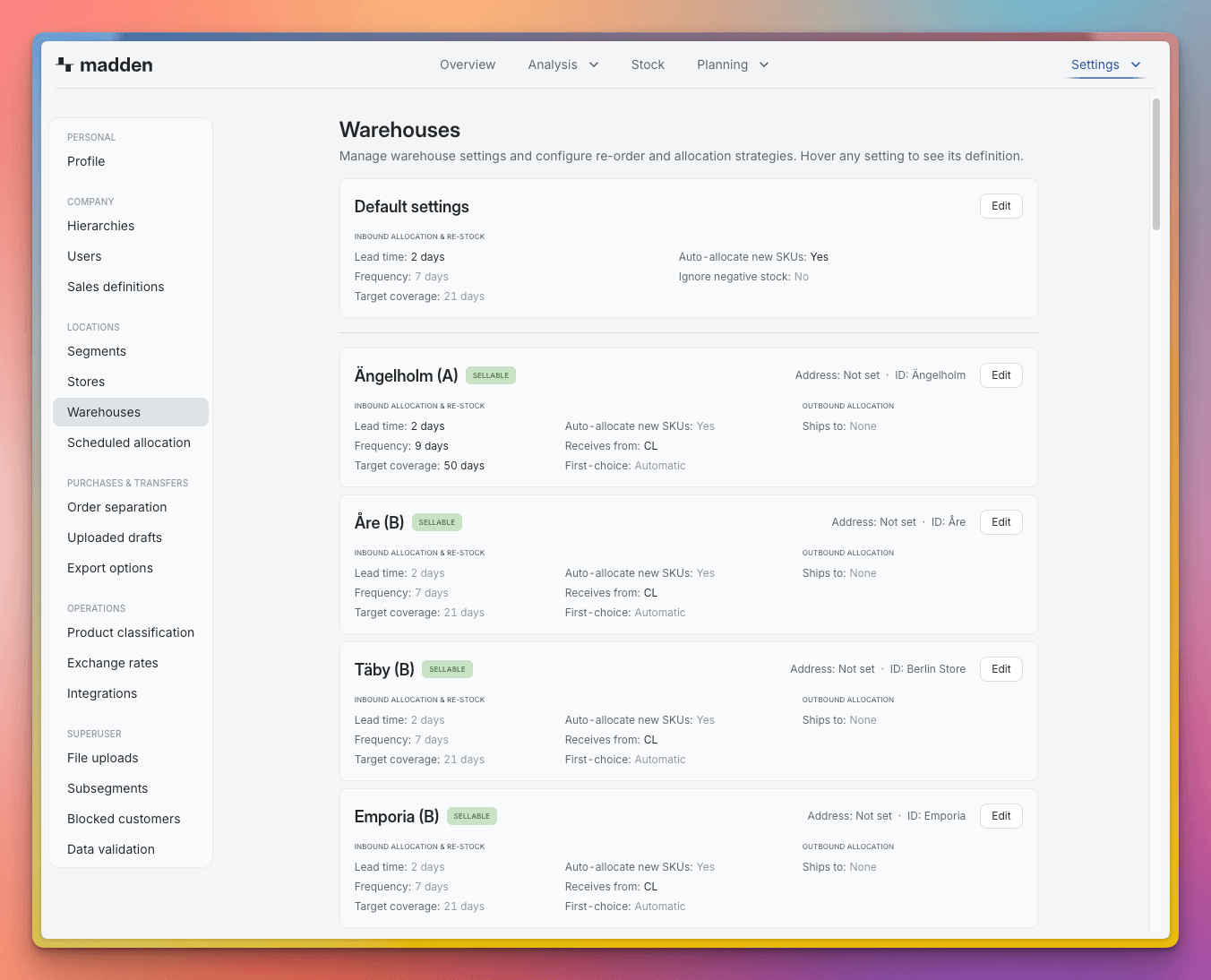
Warehouse Settings define how Madden views each physical inventory location and sets the allocation logic that governs how inbound stock is distributed. Configuring these settings is the first step toward efficient, automated inventory planning.
1. Defining Warehouse Type
The Warehouse Type is a critical setting, as it determines the location's role in all of Madden's calculations from customer sales availability to automatic re-stocking plans.
When setting up your locations, remember that the Warehouse ID is imported from your integration source and cannot be changed. However, you can freely edit the Warehouse Name in the settings panel for easier identification and management within Madden.
Warehouse Type Definitions
Type | Purpose | Implication in Madden |
|---|---|---|
Sellable | The standard type for retail locations. | Inventory at this location is counted as available for customer sales and is the primary target for inbound re-stocking recommendations. |
Central Warehouse | A specialized Sellable warehouse. | This location is the primary source for stock transfers and allocations to other non-central warehouses or stores. |
Transit | For stock currently being moved. | Inventory in this location is counted as incoming (in-transit) and is not available for immediate sale or allocation. |
Non-sellable | For stock that is physically present but unavailable. | Inventory here is intentionally excluded from all sales and allocation logic (e.g., damaged goods, QC hold). |
Inactive | Warehouse is not currently in use. | The warehouse is ignored entirely by Madden for all planning and inventory calculations. |
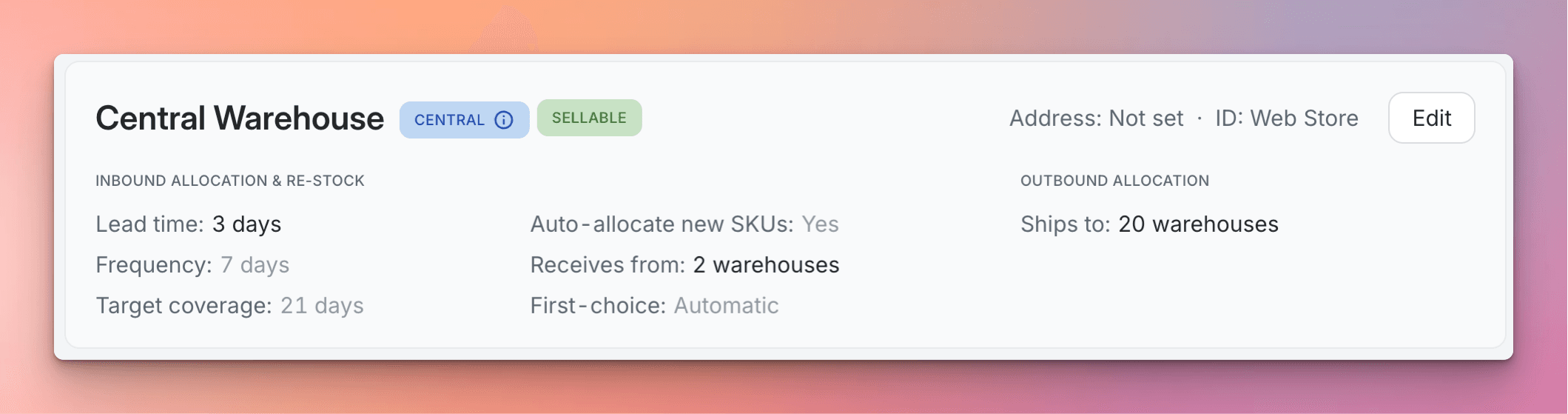
Example of a Central Warehouse configuration. A Central Warehouse is a primary source for stock transfers to other non-central locations.
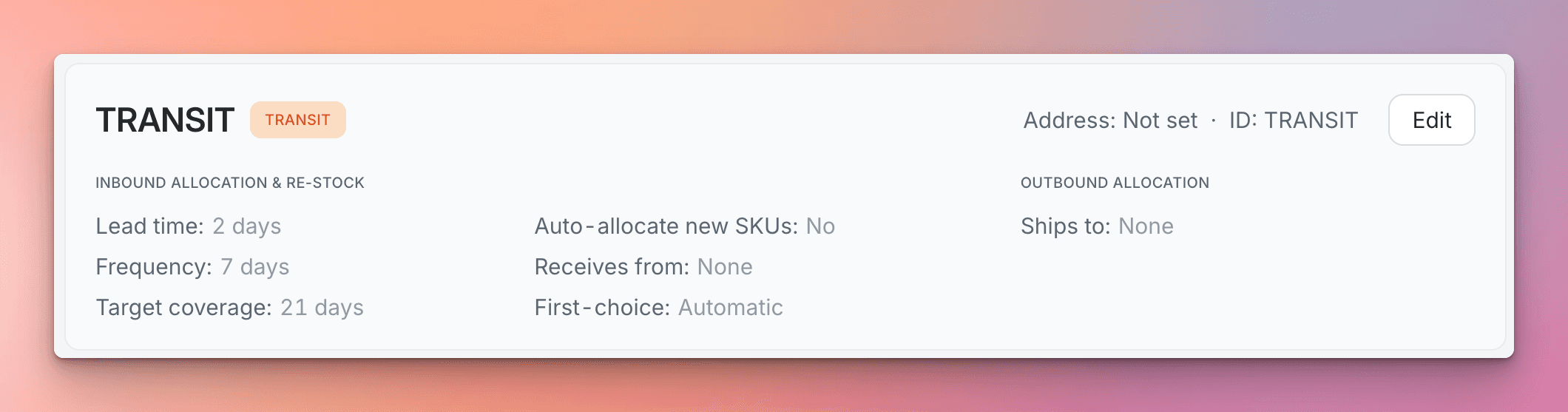
Example of a Transit Warehouse configuration. Inventory in this location is considered incoming (in-transit) and is not available for sale.
2. Configuring Allocation Rules
The Allocation Rules are the parameters that determine how Madden calculates inbound stock recommendations and manages the flow of inventory between locations.
2.1. Setting Core Allocation Metrics and Context
The core rule fields, such as Target Coverage, Frequency, and Target Lead Time, control the minimum safety net and scheduling for inbound stock.
The individual fields are fully explained via tooltips (the i-button) available directly in the Madden app. Configure these values to align with your specific inventory strategy and lead times.

Tip: If you are configuring these settings for store allocation, find a detailed walkthrough on how these values interact to generate re-stock recommendations in our tutorial:
[Managing Allocation Logic and Warehouse Settings]
2.2. Automation Toggles
These toggles allow you to automate decisions based on sales data and data quality, reducing the need for manual intervention.
Auto-Allocate-new SKUs: Toggle ON to automatically create an initial allocation setting the moment a new SKU registers its first sale in this warehouse. Toggle OFF to enforce manual setup for all new items.
Ignore negative stock (set on Default settings level and applied to all warehouses): Toggle ON to ensure that any reported negative stock balance for this warehouse is treated as zero during allocation and re-stock calculations. This is useful for preventing the system from recommending an artificially large allocation due to a temporary data error.
2.3. Defining Stock Flow (Source & Destination)
These settings link your warehouses together, defining the authorized movement of stock throughout your network.
Receives from: Select the specific warehouses or external suppliers that are authorized to send stock to this location.
If multiple sources are chosen, use the First-choice flag to designate the primary source that should be used until its stock is depleted.
Ships to: Select the locations this warehouse is allowed to send stock out to. This setting is required if the warehouse is configured as a Central Warehouse.