Allocation Needed
Committing to the recommended inventory transfers generated by your Allocation Plan and Warehouse Settings
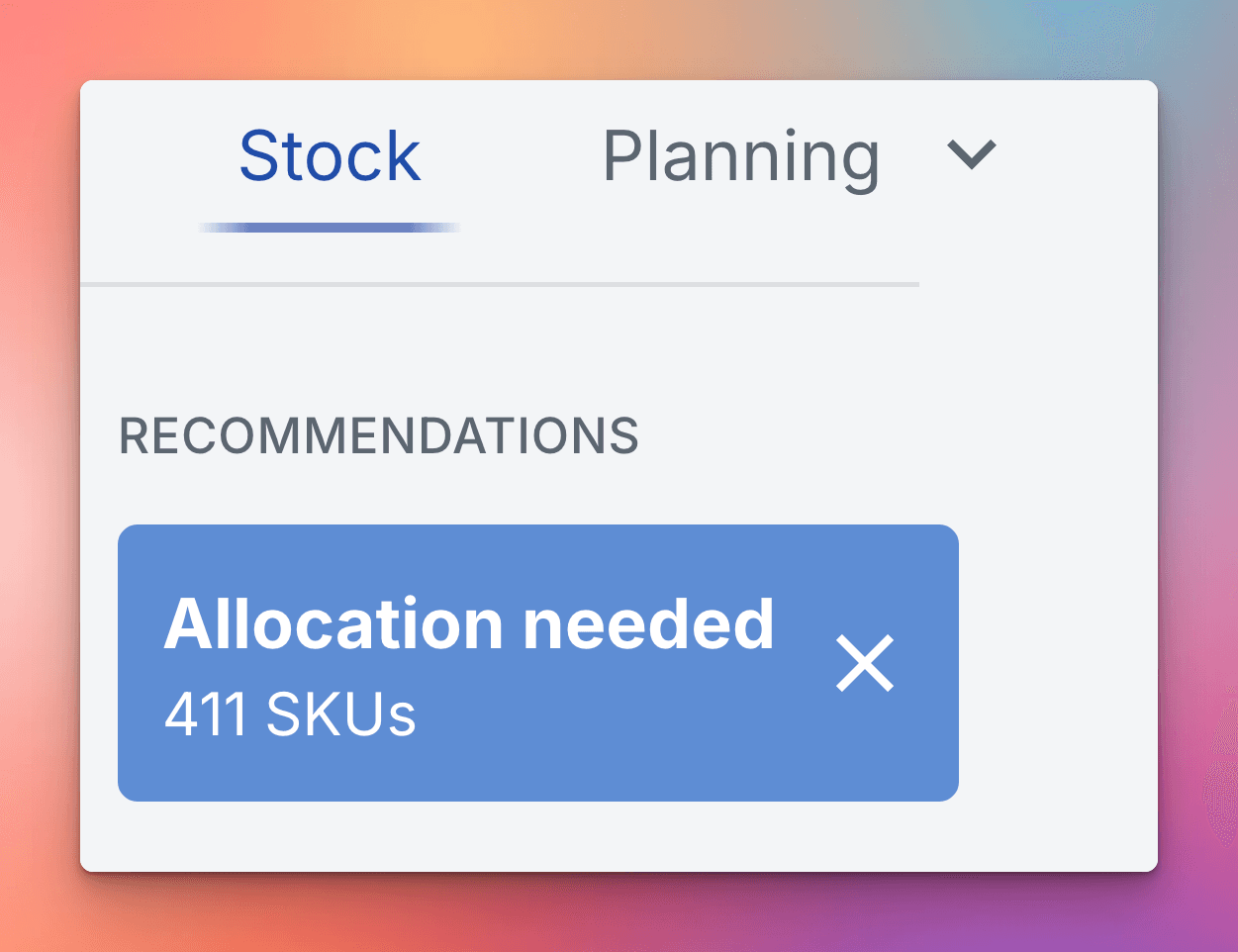
'Allocation Needed' is your direct output list for allocating inventory. It's where Madden presents the recommendations for stock transfers across your store and warehouse network.
This view compiles recommendations from all your warehouses that have the logic set up to send stock to other locations. It's the practical result of two key inputs:
Allocation Plans: Your defined rules for how much stock various locations (often stores) should hold (e.g., Target Coverage).
Warehouse Settings: The defined stock flow relationships (the Receives from and Ships to rules) between your warehouses.
This tool is commonly used to transfer stock from a Central Warehouse to your retail stores. But it can also trigger transfer orders between any two warehouse locations, provided that the appropriate shipping logic is set up in your Warehouse Settings.
Navigating and Reviewing Recommendations
Powerful Filtering and Grouping: The 'Allocation Needed' view gives you control to narrow down your focus before committing to transfers:
Refine the List: The standard filtration options work across this entire view. You can easily apply filters to only commit allocation for a specific product group (like a certain category or style) or only for a select few destinations (stores).
Recommendation Type: At the bottom of the dashboard, you can choose to only look at suggestions that came from Madden's Auto allocation logic, or from Manual and static min/max suggestions. This is great in case you want to manually review the Automatic suggestions before approving them.
Understand the Recommendation Details: The table lists every SKU, grouped by Variant, along with the source and destination location, that currently requires a stock movement. The fields displayed are fully explained via tooltips when you hover over them, available directly within the Madden app - so look there for definitions!
Drill Down to SKU Level: To see the specific allocation suggestion per warehouse for specific SKUs, click on the arrow to the left of its name. This "opens up" the warehouse row to show the individual SKU allocations.
Tip: For a detailed breakdown of how the recommended quantities are calculated, and how to adjust them based on your forecast and coverage days, please refer to our Allocation Plan Tutorial articles.
Actioning Your Transfers
Once you've reviewed the recommendations and are ready to execute the transfers, use the selection and action tools to generate a Transfer Order
First: Select Items and Warehouses for Transfer
Review the list and select the items and warehouses you wish to approve for transfer. You have several options for managing selections:
Filters: Use the filter panel to narrow the recommendations to specific warehouses or product lines.
Individual Selection: Use the checkbox next to each item for fine-tuned control.
Bulk Selection: Use the Select all visible button to approve all items currently displayed in the table, or use Deselect all visible to clear your selections.

Second: Make Adjustments if Necessary:
If necessary, you can adjust the Allocation Sending Units for any item.
You can also add specific SKUs, add All Sizes for a chosen variant, or add All variants for a chosen SKU.

Prevent future re-stocking to quickly stop re-stocking on certain items:
Click on the three dots (⋮) next to the "Add" button for an item.
From the dropdown, you can choose to:
Never re-stock underlying SKUs to current warehouse
Never re-stock underlying SKUs to any warehouse
Third: Create the Transfer Order
Once you are satisfied with your selection, verify the summary and click the Commit button (you can also Export your transfer order to Excel).
Madden will consolidate the selected items into a new Transfer Order, and send it to your ERP or connected system for managing transfer orders.
Outcome: Creating the transfer order immediately updates your inventory status. The approved quantities are moved from the Available Stock of the Source location to the Outbound stock column in the Stock Module, and added to the Inbound stock column of the Destination location.