Set Your Default Purchase Plan Settings
Configure the pre-filled settings for Purchase Orders, managing negative stock, optimization methods, and stock allocation.
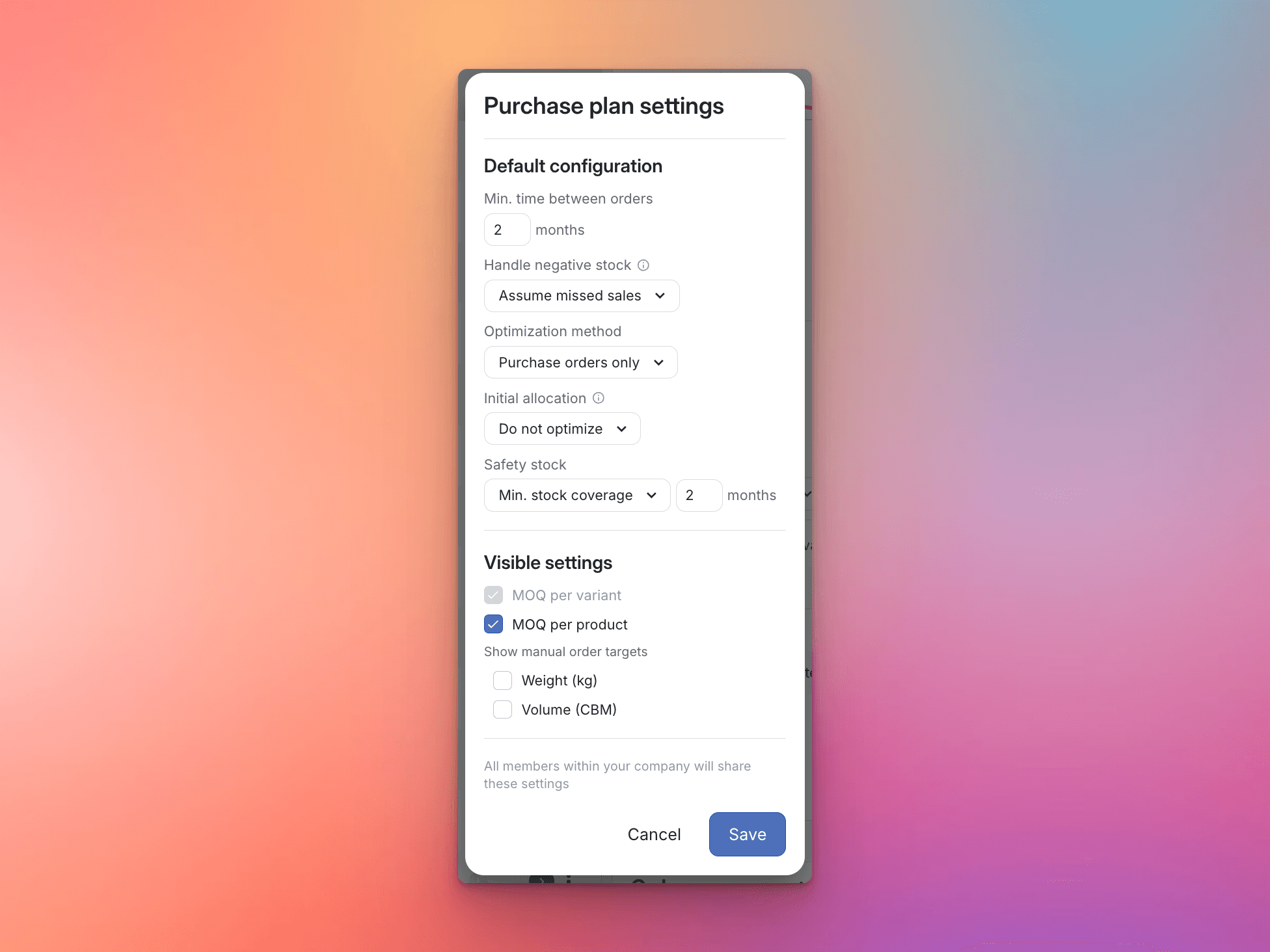
The Purchase Plan Settings define the default configuration for how Madden Analytics generates suggested Purchase Orders (POs) for your account. These settings are the pre-filled values for every new plan, but you can always override them for specific products.
Prerequisites
You have access to the Planning module.
Minimum Order Quantity (MOQ) and Lead Time are already set for the relevant products in the Product Information section (click here for a tutorial on managing product information).
Define Your Default Purchase Plan Logic
Follow these steps to configure your account's default purchase plan settings:
When in Planning -> Plan & Buy, click on Manage in the top-right corner of the Purchase Orders section.
Click on the Settings button, to the right of the Optimize orders button.
Adjust the following settings based on your most common purchasing workflow:
Min. time between orders: Enter the minimum number of months that should pass between generated Purchase Orders (POs) for a variant.
Handle negative stock: This setting controls how the forecast is managed if stock is expected to run out during the replenishment lead time. Choose one:
Continued sales: Assumes any sales lost while out of stock will be caught up when the item is restocked. The original sales forecast remains unchanged.
Missed sales: Removes the forecasted sales for the period when the variant is expected to have negative stock, assuming those sales are lost permanently.
Optimization method: Select which inventory movements Madden should consider when creating the optimal plan:
Purchase Orders only: Calculates the plan based only on incoming Purchase Orders.
POs and transfers: (If you have multiple warehouses) Optimizes inventory by considering both Purchase Orders and potential Transfer Orders between warehouses.
Initial allocation: Decide if the plan should consider future stock allocations (managed under Stock -> Allocation plan). This is primarily for variants with an allocation start date set in the future.
Do not optimize: Allocation settings will be ignored in the purchase plan.
Optimize quantities: The plan will ensure enough quantity is ordered to fulfill all defined future allocations. All quantities will be ordered to the default warehouse for each segment.
Optimize quantities and separate POs: The plan will ensure enough quantity is ordered to fulfill all defined future allocations and will separate POs for each store's allocation.
Safety stock: Choose your preferred method for calculating Safety Stock (extra stock held to prevent stockouts):
Min. Stock Coverage of X months: Define the minimum stock cover, in months of forecasted sales, that you want to maintain.
Target Sell-through of 0–100%: Define a target percentage of units that you want to have sold by the end of the current planning period.
Review the Visible Settings section. Here you can select which key purchasing metrics (beyond the required MOQ per Variant and Lead time) you want to display for easy reference within the Purchase Plan view.
Manual order targets: Displays a field to manually set an order target.
Weight (kg): Displays the total weight, allowing you to optimize POs by container weight.
Volume (CBM): Displays the total volume, allowing you to optimize POs by container volume.
Click Save to apply your changes.
