Managing Product Classifications
Use custom labels to segment, filter, and analyze inventory performance.
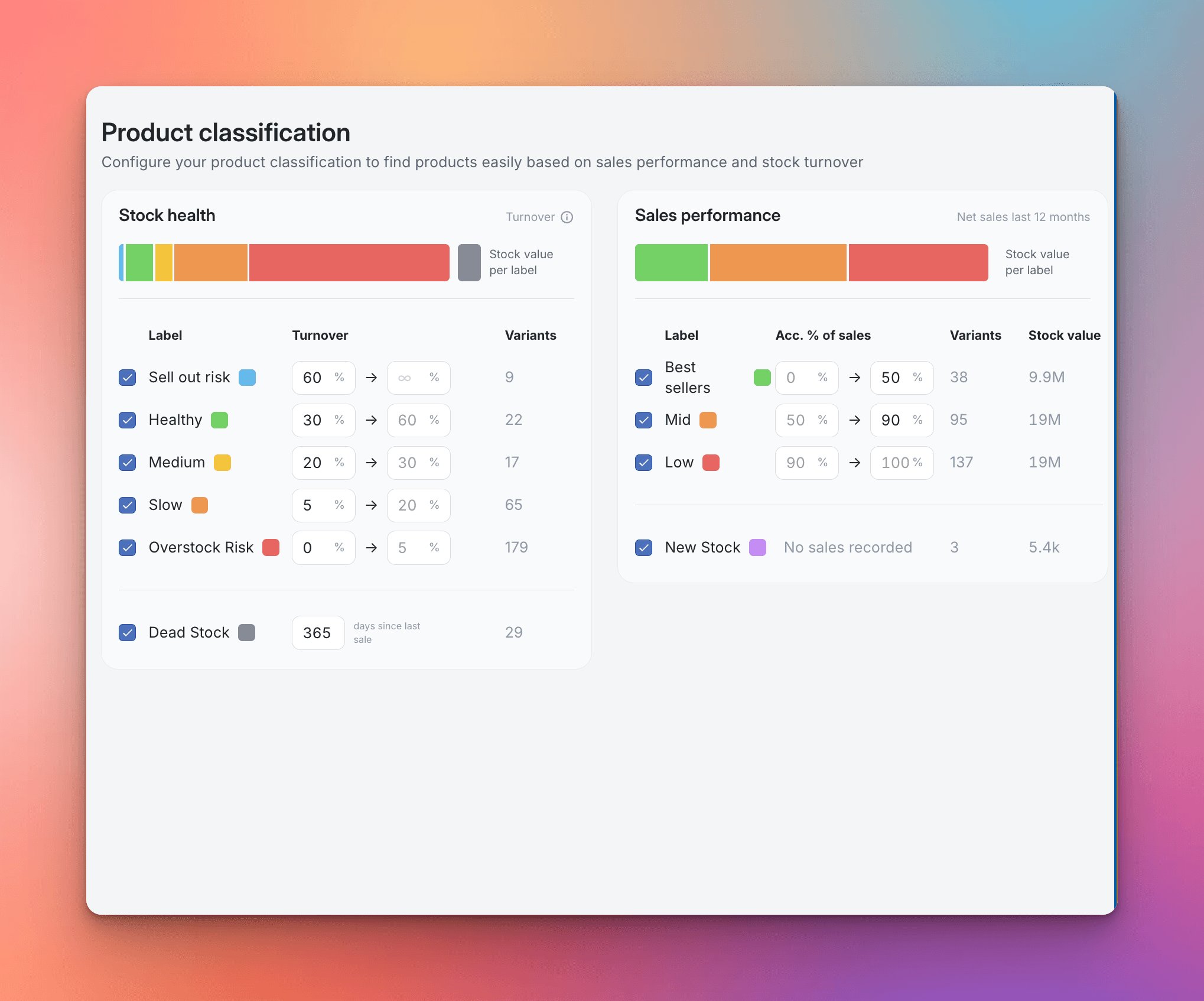
Product Classifications are flexible, visual labels that you can apply to your inventory. They allow you to segment and group products based on criteria beyond the standard product hierarchy:
Stock Health: Fast-moving vs. Slow-moving
Sales Performance: Top Performers vs. Bottom Performers
By assigning classifications, you can easily filter, analyze, and apply specific planning logic to targeted product groups in the Stock Module and Allocation Planning tools.
Viewing and Filtering by Classification
Product Classifications appear as colored tags directly within the Stock Module table, giving you an immediate visual cue about the status of a product line.
How to Use Classifications in the Stock Module
View the Classification Tag: The Stock Health label (e.g., "Overstock Risk") appears in a dedicated column, next to the product name.
Filter Your View: Use the filter panel on the left-hand side to include or exclude products based on their classification.
Example: Filtering for "NOOS" items only allows you to quickly assess the inventory health of your most vital products.

The Two Classifications
Madden features two classifications, which are configured based on your sales data and are fully customizable in terms of rules and appearance.
Classification | Purpose | How it is Calculated |
Stock Turnover | Measures how quickly inventory sells. | Products are categorized (e.g., High, Medium, Low) based on the rate at which units are sold over the last 30 days. |
Sales Performance | Measures the product's contribution to revenue. | Products are categorized based on their accumulated percentage of Net Sales over the last 12 months. |
Customizing Your Classifications
You have full control over the names, colors, and thresholds for your classifications.
Step 1: Access the Classification Settings
In the top navigation bar, open Settings.
Select the Product Classifications tab.

Step 2: Set Up Rules and Appearance
Define Thresholds: For each classification (Turnover and Sales Performance), set the specific thresholds that determine when a product receives a certain label.
Example: You can define "High Turnover" as any product selling X times faster than average.
Customize Appearance: Assign a custom Name and Color to each classification category (e.g., naming your highest tier "Tier 1" and setting the color to green).
Save: Click Save to apply your classification rules and instantly update how products are labeled across Madden.