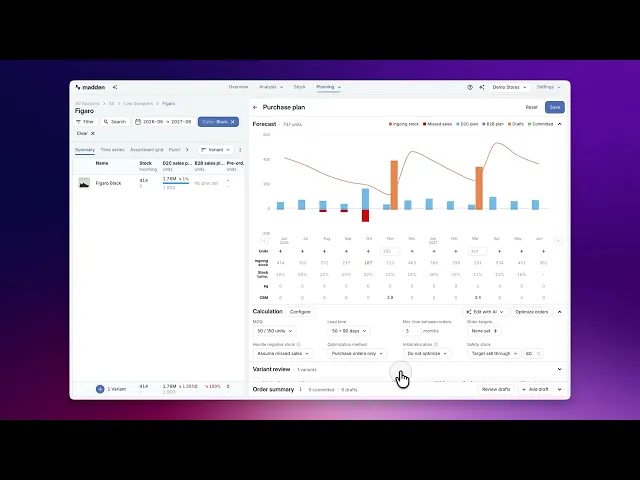
Manage Purchase Orders over time
Create draft purchase orders from your sales plan, stock, lead times, MOQ, and order settings.
Purchase plan over time is the Plan & Buy workflow for creating and revising draft purchase orders from your planning data. Use it when you want Madden to calculate suggested draft orders across the future planning range, based on demand, stock, incoming units, MOQ, lead time, safety stock, and account order settings.
The goal is not only to buy enough stock. Madden tries to minimize stock on hand while still respecting the parameters you set, such as MOQ, lead time, safety stock, order targets, current stock, incoming stock, and transfer rules. The result is a draft plan that you can review and edit before saving.
This workflow creates draft purchase orders. It does not commit them. After saving, the drafts can be reviewed and committed from the purchase-orders area.
Open the workflow
Go to Plan & Buy and open the Summary tab.
Select the products or category you want to plan.
In the Purchase orders block, click Manage or open the dropdown and choose Purchase plan over time.
Manage is disabled for unsupported selections, such as multiple delivery windows, SKU-level selections, or filtered subsegments. Move up to variant level or adjust the filters if the action is unavailable.
Understand where the values come from
The calculation starts from the selected planning scope and combines values from several places:
Source | Examples | Why it matters |
|---|---|---|
SKU and product data | Current stock, incoming units, SKU sizes, supplier price, cost price, sales price, weight, volume, pack size, and product or variant MOQ where available. | These values shape the unit need, order value, margin, weight or volume targets, and whether quantity rounding or MOQ rules can be satisfied. |
Sales plan | Future demand by period, variant, segment, and SKU. | This is the main demand signal. Madden tries to cover this demand without buying more stock than the settings require. |
Existing supply orders | Committed purchase orders, committed transfers, and draft orders already in the selected scope. | Incoming units reduce what still needs to be bought, while existing drafts can be replaced or adjusted by the new working plan. |
Configured defaults | Default MOQ, product MOQ visibility, production lead time, shipping lead time, minimum time between orders, negative-stock handling, safety stock, initial allocation, and optimization method. | Defaults keep the workflow consistent across users. Leaving an input blank keeps the loaded default behavior; entering a value creates a planning-session override. |
Set the calculation logic
The calculation block controls how Madden generates order suggestions. Review the defaults and adjust them only when this planning session needs different assumptions.
MOQ: Minimum order quantity per variant, and product MOQ when enabled. MOQ can force Madden to buy more than the exact demand need.
Lead time: Production and shipping lead time. Madden uses the combined time to understand when ordered stock can arrive and whether demand before arrival can be covered.
Min. time between orders: Helps avoid suggestions that place orders too close together.
Handle negative stock: Controls whether stockouts during lead time are treated as missed sales or as demand that continues after replenishment.
Safety stock: Adds a buffer, either by future coverage or target sell-through depending on the selected method.
Order targets: Lets you guide future unit, weight, or volume targets. Targets influence the plan but do not override hard constraints such as MOQ, pack sizes, or validity checks.
Optimization method: When supported, choose whether Madden should create purchase orders only or also include transfers between visible segments.
How orders are split
How Madden splits the result into draft orders depends on your account settings and the selected context. Some accounts plan only purchase orders. Others can create both purchases and transfers. Segment setup, default warehouses, destination warehouses, delivery windows, and draft configuration all affect how the same total quantity becomes one or several draft orders.
For example, if visible segments are enabled and transfer optimization is supported, Madden can suggest moving stock between segments instead of only buying new stock into each segment. If segments are not used in the current selection, Madden relies on the available destination or warehouse setup. Processing time configured in draft settings can also affect when stock is treated as ready after arrival.
Optimize and review
Click Optimize orders to generate suggestions. A successful run replaces the current working draft state, so make manual edits after the optimization run you want to keep.
The optimizer compares demand with stock and incoming units, then decides how much to buy or transfer while respecting the calculation settings. In practice, this means Madden tries to avoid both underbuying and unnecessary overstock. If MOQ, safety stock, order targets, or pack sizes require extra units, the plan may intentionally buy above the exact need.
Review the result in three places:
Forecast summary: Shows demand and draft volume over time, including months where drafts or committed orders already exist.
Variant review: Explains what is needed by variant, segment, and SKU, including MOQ warnings, pre-orders, transfers, missed-sales context, draft purchases, and over- or under-stock effects.
Order summary: Shows the draft and committed orders that make up the purchase plan. Use Review drafts, Add draft, draft details, and delete actions to adjust the working plan.
Edit before saving
The suggested plan is still a working draft. You can remove draft rows, add drafts, inspect draft details, adjust quantities, or review individual draft orders before saving. If AI editing is enabled for your user, you may also see Edit with AI, which lets you ask for changes to the working draft set. Any applied AI edits should still be reviewed before saving.
Save the drafts
Use Save when the working draft plan is ready. Madden saves the drafts for the current planning scope, refreshes Plan & Buy data, and closes the workflow. Drafts with zero quantities are ignored, and overlapping nonzero draft quantities are blocked so duplicate orders are not saved for the same SKU, date, destination, and order type.
Common checks
If Manage is disabled, check whether you selected multiple delivery windows, SKU level, or a filtered subsegment.
If the saved result is not what you expected, check whether you re-ran Optimize orders after making manual edits.
If weight or volume targets fail, check that the selected SKUs have the required weight or volume metadata.
If a draft date is highlighted, review whether the order date is in the past or whether there is no lead time between order and arrival.
If Madden buys more than the exact needed units, check MOQ, product MOQ, pack sizes, safety stock, order targets, and transfer settings before overriding the result.