Build and Maintain Budgets in Madden
Plan sales, purchase values, and stock impact across your budget hierarchy.

The Budget module is where you build and maintain sales and purchase budgets in Madden. It lets you start from a top-line plan, drill into your budget hierarchy, edit one row at a time, and keep parent and child levels aligned as the plan becomes more detailed.
Use Budget when you need a structured planning workspace for sales, purchasing, and stock impact. The table gives you the overview, while the right-hand sidebar is where you edit the selected row and review the values Madden calculates from your inputs.
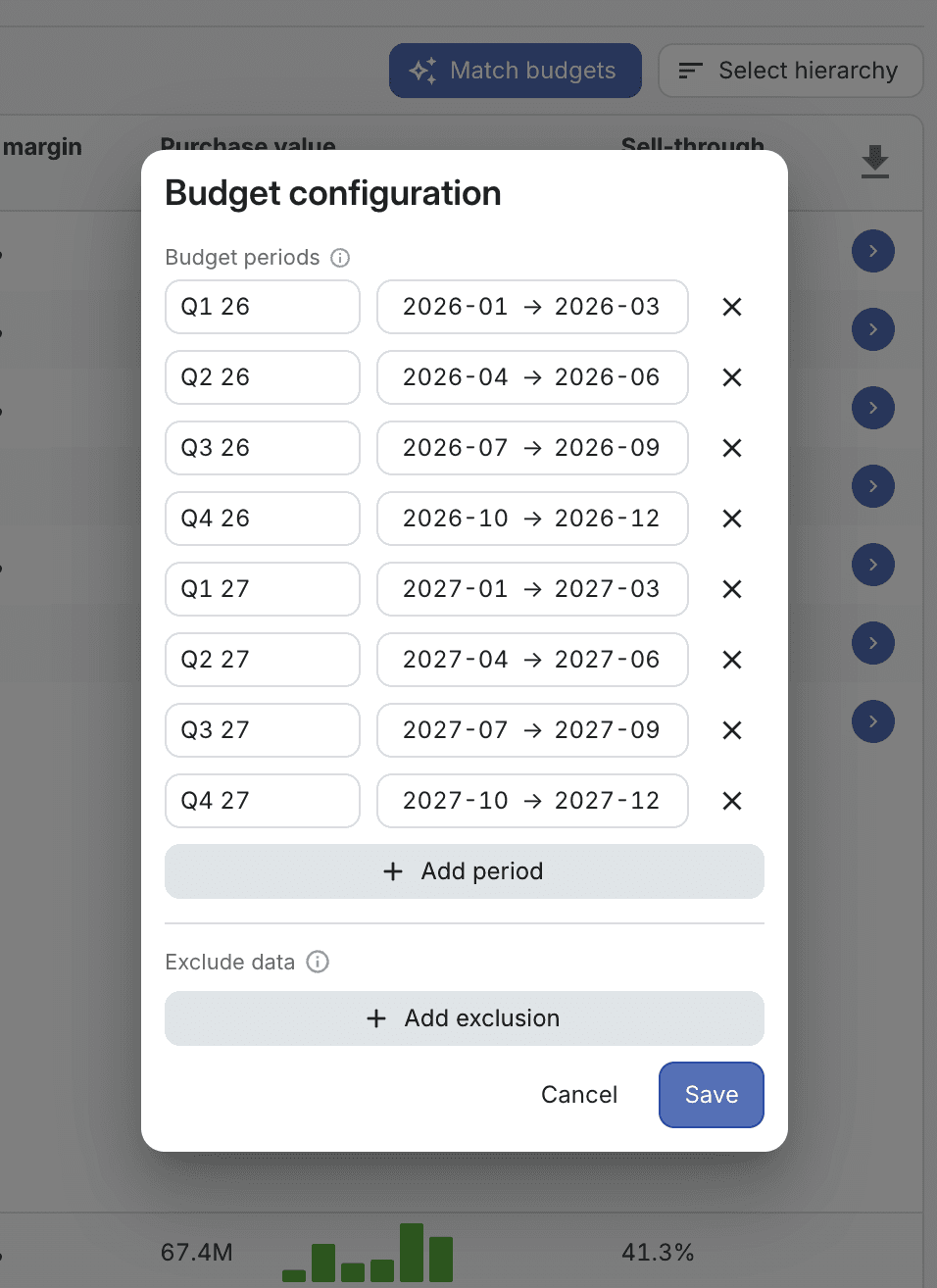
Define your budget periods
Before planning, define the budget periods you want to work with. Many teams use quarters because they are long enough for commercial planning but still specific enough to review seasonal shifts. You can also configure periods that match your own planning calendar, for example campaigns, seasons, drops, or financial periods.
When you later plan in Budget, you select one or more of these periods from the header. If you select several periods, Madden treats the selection as one continuous planning range. This makes it possible to plan a single quarter, compare adjacent quarters, or work across a longer season without changing the underlying budget structure.
Work through your hierarchy
Select the budget periods: Choose the period or period range you want to plan. The values, notes, parent comparisons, and save behavior follow this selected scope.
Select the hierarchy: Use Select hierarchy to decide which structure owns the budget, for example product hierarchy, sales hierarchy, store hierarchy, or another configured budget hierarchy.
Drill into detail: Use the row arrow to move from a parent level into child rows. This is how you go from a total budget into the product, channel, store, or custom grouping that should own the detailed plan.
Summarize when reviewing: Use summarized groupings when you want to inspect totals from another angle. Editing is intentionally disabled in summarized mode so you do not accidentally change rows outside the active budget hierarchy.
Edit a budget row
Budget table cells are read-only. To make changes, select a row and edit it from the sidebar. This keeps table review separate from the actual editing surface and makes it clearer which row you are changing.
The sidebar can show Sales, Purchase, and Stock projection sections depending on the selected row and account setup.
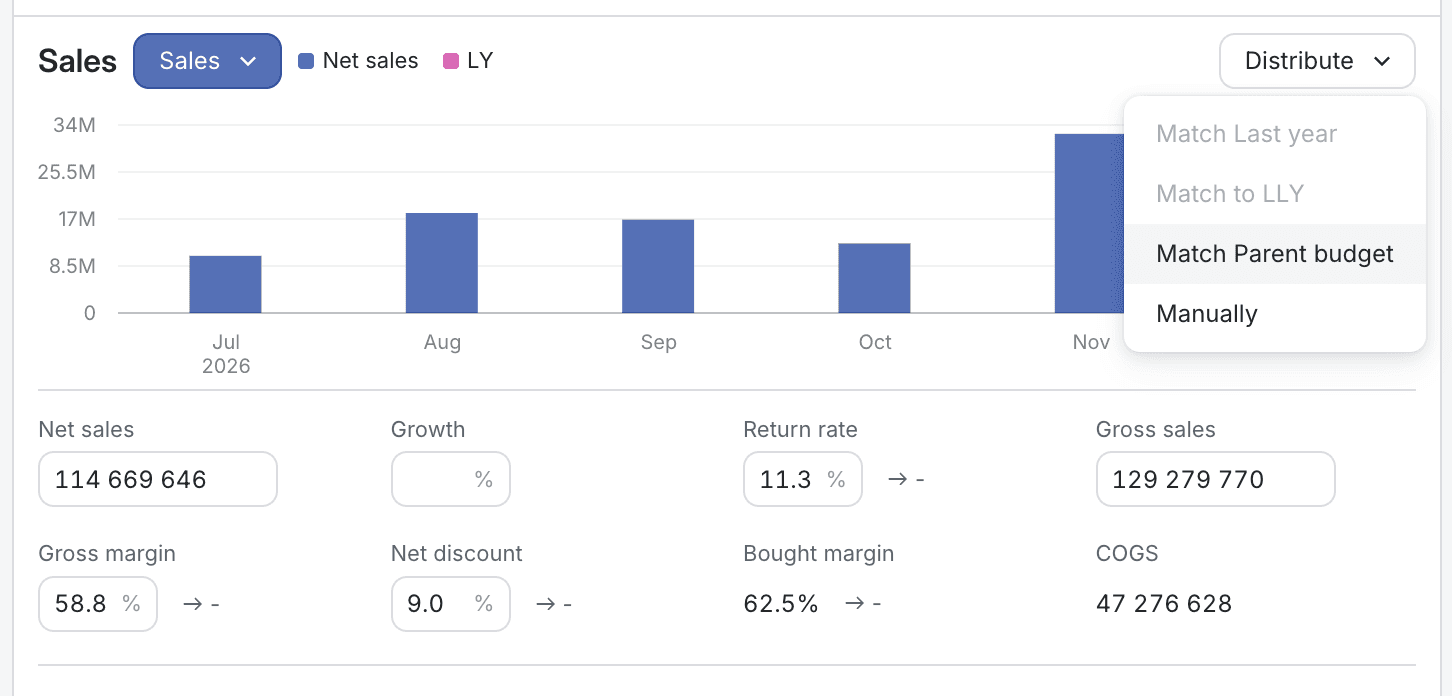
Sales budget
The Sales section is where you define the commercial sales plan for the selected budget row. Madden lets you edit the key assumptions and then calculates connected values from them.
Input or review | What it means |
|---|---|
Net sales | The planned sales value after discounts and returns. This is usually the main sales-budget target. |
Growth | The change compared with a reference value when that comparison is available. |
Gross sales | The planned sales value before discount and return assumptions are applied. |
Return rate | The share of sold value expected to be returned. |
Gross margin | The planned margin rate for the row. |
Net discount | The planned discount level after relevant sales assumptions are applied. |
No. of variants | The number of planned variants in the row, where this is relevant for the hierarchy level. |
Average sales price | The average price used to connect value assumptions to unit and variant assumptions. |
Madden also shows calculated or read-only values where the prerequisites exist, such as COGS, bought margin, average units per variant, reference comparisons, and period-over-period differences. These help you check whether the edited plan is commercially coherent before saving.
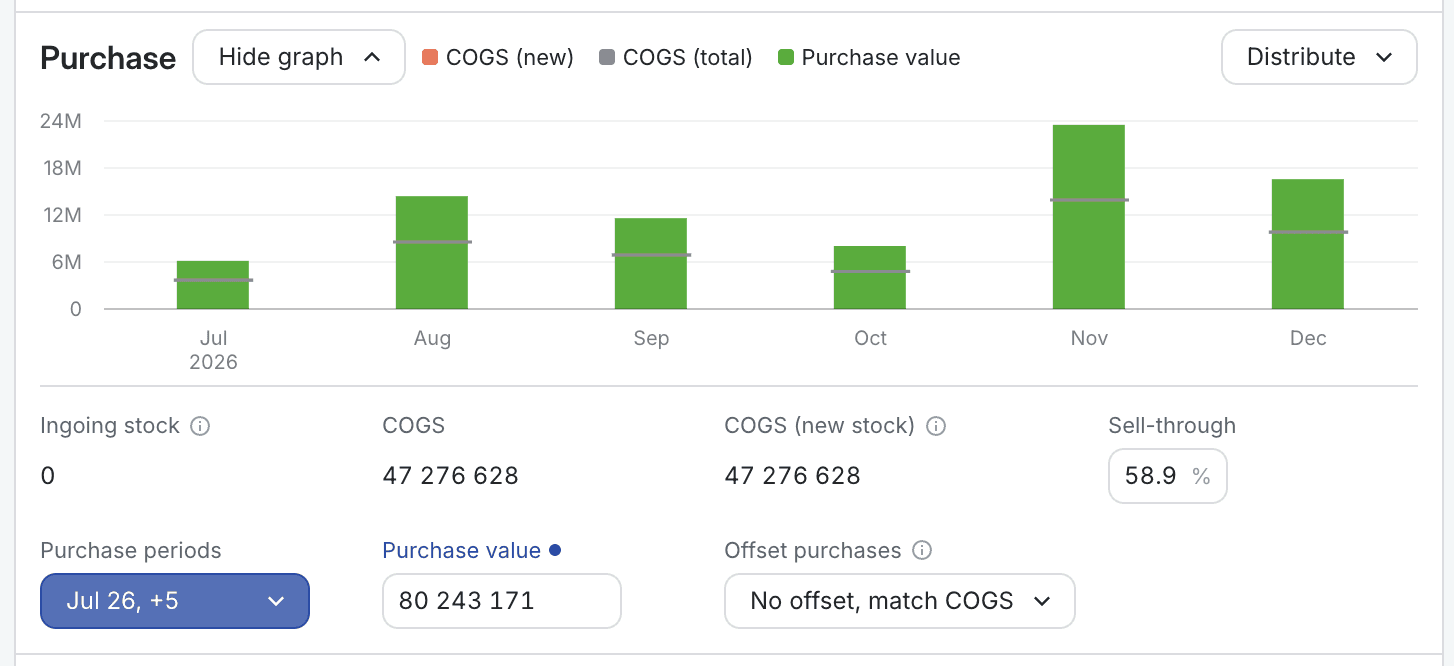
Purchase budget
The Purchase section connects your sales budget to the buying plan. Use it to decide when purchases should happen, how much purchase value is needed, and whether the plan gives a realistic sell-through and stock outcome.
Purchase periods: Choose when buying should happen for the selected row. Madden blocks clearing all purchase periods because the purchase plan needs a time scope.
Purchase value: Enter or review the value planned to be bought for the selected row.
Sell-through: Review how much of the ingoing and purchased stock is expected to sell in the selected planning scope.
COGS and ingoing-stock sync: Use the available sync controls when you want purchase assumptions to follow sales-budget cost or stock assumptions instead of being maintained separately.
Distribution over time
Budget planning is not only about the total. The timing matters because the same total can create a very different plan depending on when sales and purchases happen.
For sales, the distribution controls let you decide how the selected total should be spread across the months inside the selected budget periods. You can manually shape the distribution, or match a source such as last year, last-last-year, parent budget, or another available reference. Matching a source keeps the selected total but changes the timing pattern.
For purchase, the distribution controls help you shape when the purchase value lands. You can manually distribute purchases or, where available, match the purchase timing to COGS. This is useful when buying should follow the expected timing of demand rather than being spread evenly by default.
The time distribution feeds the stock projection. If sales are concentrated before purchases arrive, the plan may show a stock risk. If purchases arrive too early or too heavily, the plan may show excess stock. The goal is to make the sales target, purchase timing, and stock projection work together.
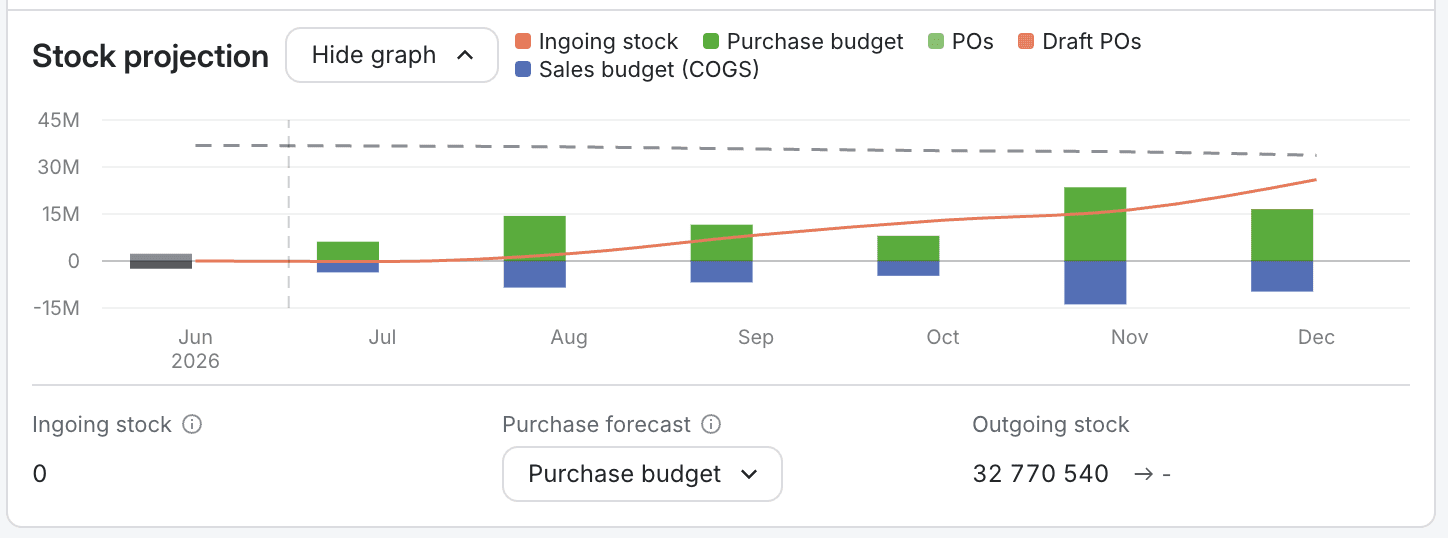
Stock projection
The Stock projection section shows how the plan affects inventory. It can combine ingoing stock, purchase budgets, purchase orders, sales budgets, and sales plans depending on your configuration. Use it as a check before saving: a budget can have the right total value but still create an unrealistic inventory curve if timing, sell-through, or purchase assumptions are off.
Save and review changes
After editing, use Save to persist the current Budget changes. Use Reset if you want to return to the last loaded values. If you try to change scope with unsaved changes, Madden will warn you before applying the new selection.
Tips
Start with the hierarchy: Decide which level should own the budget before editing detailed rows.
Use summarized view for review: If editing controls disappear, check whether you are looking at a summarized grouping instead of the editable hierarchy.
Use notes for decisions: Notes are scoped to the selected budget row and current time scope, so they are useful for explaining important plan changes.
Be careful with hidden rows: Hiding a row can remove saved budget data for that budget after confirmation. Use status changes when the row should remain visible but stop being edited.