Use Purchases & Transfers
Review purchase orders, transfer orders, and drafts from one workspace.
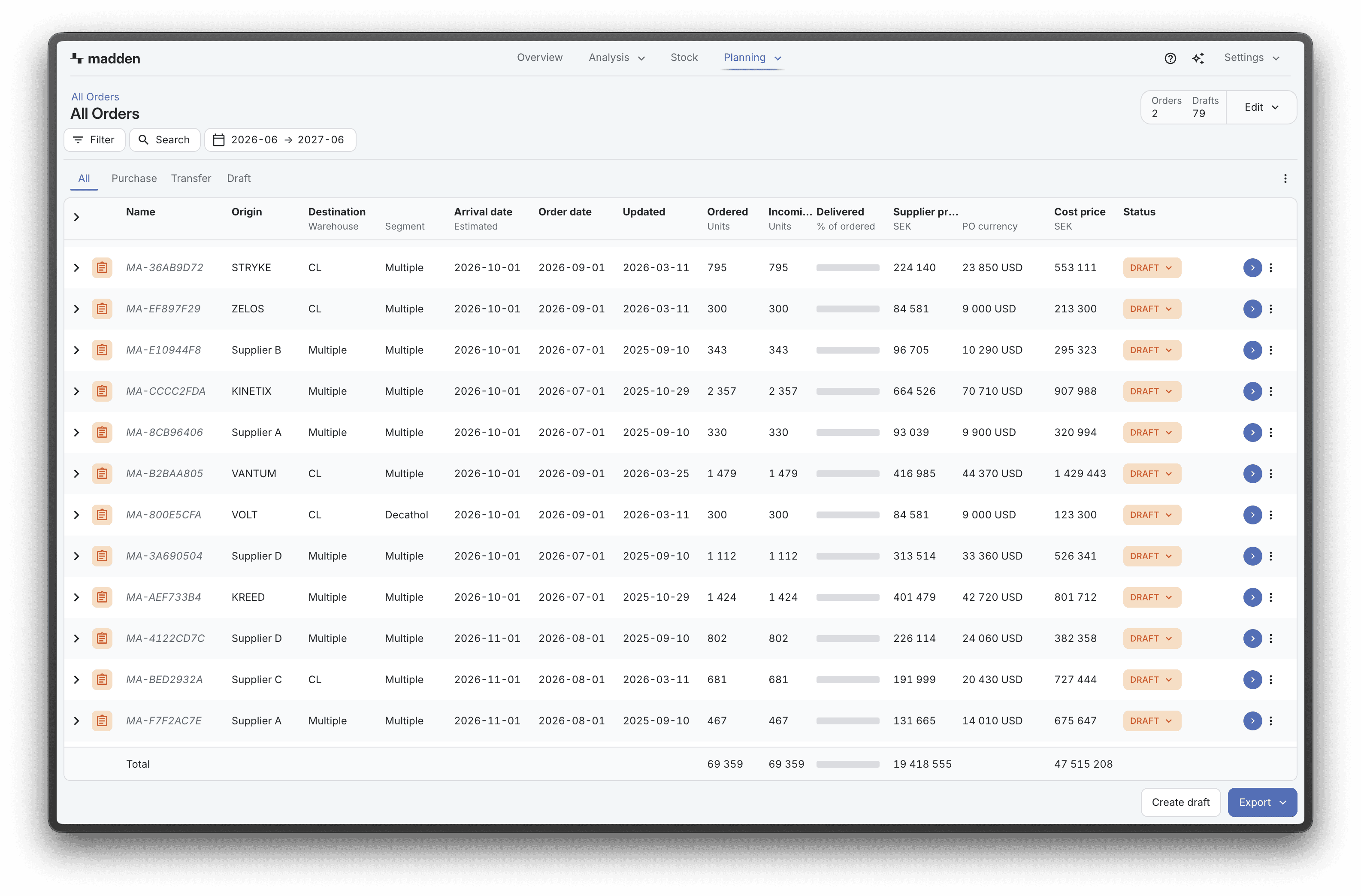
Purchases & Transfers is the workspace for reviewing and maintaining supply orders after they have been created. Use it to inspect purchase orders, transfer orders, and draft orders; drill into the products and SKUs behind them; edit draft quantities and draft details; and commit or report delivered orders when the order is ready for the next step.
This page is the bridge between planning and execution. Plan & Buy can create draft purchase orders and transfer suggestions, but Purchases & Transfers is where those drafts become operational records that can be reviewed, adjusted, committed, exported, or cleaned up.
What you can find
The workspace is built around a header, a tabbed table, and a hierarchy you can drill through. At the highest level, the table shows supply-order headers. From there, you can open an order and continue down into variants, SKUs, and SKU-level rows depending on the current grouping.
Purchase orders: Orders from suppliers into a destination warehouse or segment. They can be drafts, committed orders, delivered orders, or orders managed through an external integration depending on your setup.
Transfer orders: Orders that move stock from one origin to one destination. They are used when stock should be rebalanced between warehouses, segments, or other configured stock locations instead of purchased from a supplier.
Drafts: Editable working orders. Drafts can come from Plan & Buy optimization, one-time purchase workflows, manual creation, transfers, or file uploads. They are not final until they are committed.
Existing orders: Non-draft orders that can be reviewed, exported, and in some account modes updated with delivered quantities.
Use filters and date range first
Start by setting the date range and filters. The date picker works by month, so Madden normalizes the selected range to full months. This matters because the table, totals, incoming quantities, and visible drafts all follow the active date range.
The filter bar can include product filters such as brand, category, season, product, variant, SKU status, and custom PIM fields. It can also include supply-order filters such as status, order type, delivery window, factory, label, supplier, warehouse, origin, destination, segment, and selected order header. The exact filters visible depend on your account setup and whether the filter has meaningful options in the current context.
If the table looks incomplete, check the filters before changing the order. A draft may be outside the selected month range, hidden by a product filter, or excluded by the active tab.
Understand the tabs
The top tabs are the quickest way to switch between different supply-order views.
Tab | What it shows | Use it when |
All | All visible purchase orders, transfer orders, and drafts in the current date range and filters. | You want the full supply picture and do not want to separate order types yet. |
Purchase | Purchase orders only. | You are reviewing supplier orders, incoming stock, ordered quantities, delivery timing, or purchase-order status. |
Transfer | Transfer orders only. | You are reviewing stock movement between origins and destinations. |
Draft | Draft purchase orders and draft transfer orders. | You are cleaning up suggested orders before committing them. |
The tabs update the supply-order type filter. If you are drilled into another grouping, the tab may not look like a traditional selected tab, but the filter still controls which order types are included.
Read the table
The table is a breakdown view. Each row represents the current hierarchy level, and the right arrow lets you drill into the next level when more detail is available. Use the hierarchy to move from the order header into the products, variants, or SKUs that explain the order.
The visible columns depend on the current hierarchy and your column settings. Typical columns include the row name, order status, order type, order date, arrival date, ready date when handling time is configured, supplier, origin, destination, ordered units, delivered units, left-to-receive quantities, supplier price, value, completion rate, and other planning or stock context.
Use Column settings from the settings menu when the table shows too much or too little. Column settings are useful when different users need different views: one person may want status and destination, while another may care more about SKU-level quantities, prices, and completion.
Use the info box
When you select one order header, the info box summarizes important order details such as status, label, order date, arrival date, ready date when available, and destination. It is a quick way to check whether you are editing the right order before opening a dialog.
The info box also exposes edit entry points. For drafts, it can open draft detail editing. For eligible manual purchase orders, it can open the delivered-quantity reporting workflow. For draft purchase orders, the destination area can also open a dedicated draft edit dialog for destinations and quantities.
Create drafts
At the top order level, use Create draft when you need to create a draft directly from Purchases & Transfers instead of starting from Plan & Buy.
The create dialog has Purchase and Transfer tabs. A manual purchase draft needs a supplier, destination, at least one SKU, order date, and arrival date. A manual transfer draft needs an origin, destination, at least one SKU, order date, and arrival date. In both cases, Madden creates draft rows with starter quantities so you can continue editing the quantities afterwards.
You can also switch the dialog to Upload from file. File upload is useful when the draft already exists in Excel or when you need to create many draft rows at once. The upload template expects product keys, quantities, order and delivery dates, warehouse IDs, and optional labels. Rows with errors are skipped, while valid parsed rows can become prepared draft orders.
Edit draft content
Drafts are designed to be adjusted before they are committed. When you are inside a draft and the selected status allows editing, the footer can show Edit content. This switches the table into edit mode.
In edit mode, the table uses local draft rows. You can change ordered quantities in the editable cells, add products, and then save or cancel the draft content changes. Cancel restores the latest loaded table rows. Save writes the edited draft quantities and refreshes the workspace.
The Add products control appears while edit mode is active. It opens a SKU selector, excludes SKUs that are already present, and adds the returned rows to the current draft so you can enter their volume. This is useful when an optimized or uploaded draft is mostly right but missing a few products.
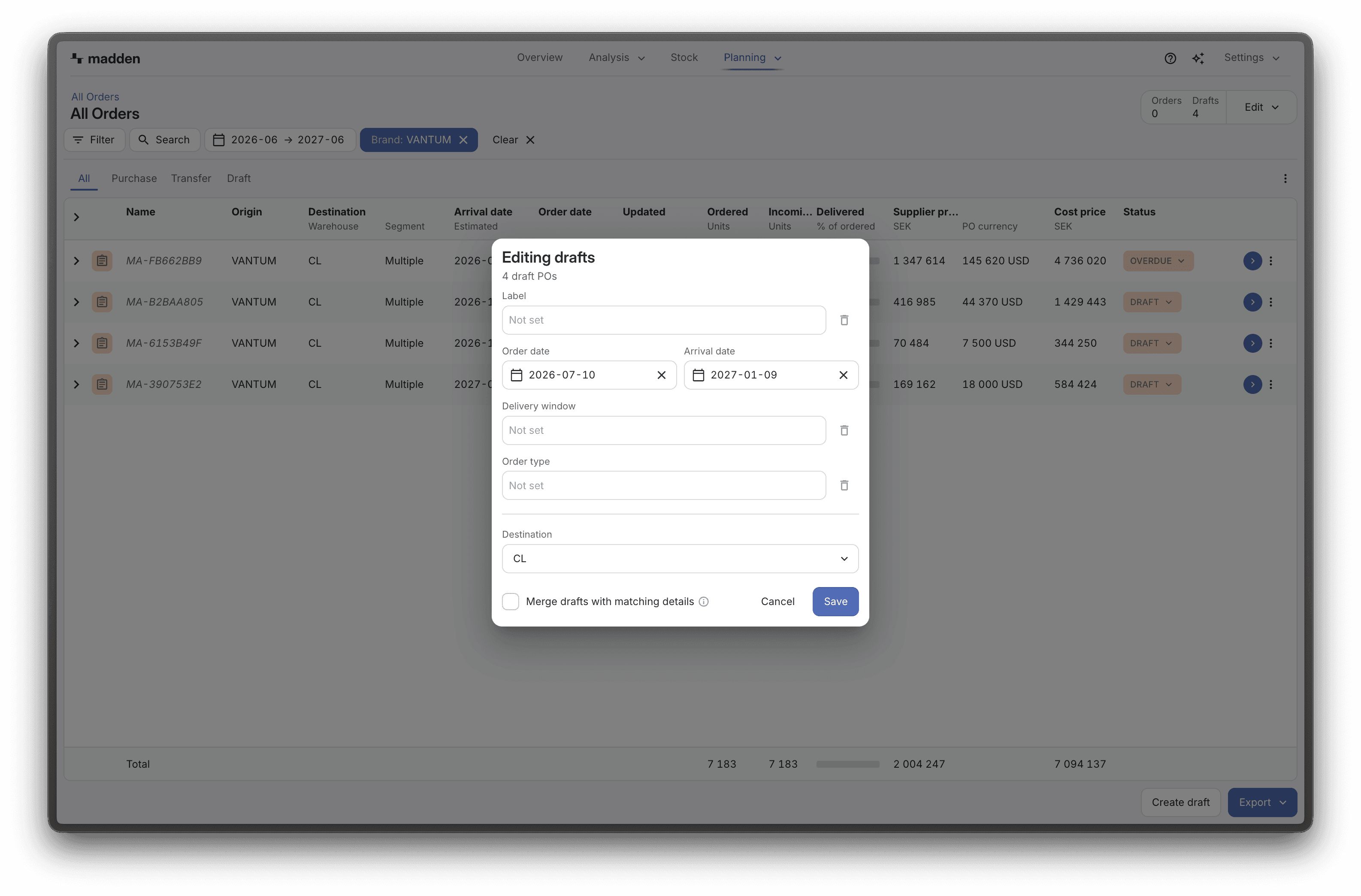
Multi-edit draft details
Use Edit drafts when several drafts need the same header-level changes. The multi-edit dialog can update details such as label, order date, arrival date, delivery window, order type for draft purchase orders, origin for draft transfers, and destination.
The dialog only sends fields you changed. Typing nothing in a text field leaves the existing value unchanged, while using the clear action marks that field to be cleared. Save is blocked when no field changed, when order date is after arrival date, or when a transfer would have the same origin and destination.
The multi-edit dialog also includes Merge drafts with matching details. Use this when several draft headers should be combined after receiving the same details. When merge is off, Madden protects you from accidentally creating duplicate matching drafts by stopping on collisions.
Edit draft destinations and quantities
For draft purchase orders, the dedicated draft edit dialog gives a more detailed editing surface for destinations and quantities. It is useful when the header details are correct but the split across destinations, variants, or SKUs still needs work.
The dialog shows rows for the draft destination and quantity structure. Parent rows can be expanded to inspect nested detail. The quantity column is editable on rows where direct editing is allowed, and the footer sums the visible quantity.
The dialog can also apply a destination split. Choose destination warehouses, click Apply, and Madden asks for a suggested split based on the current rows, selected destinations, and draft delivery date. Review the returned rows before saving.
Commit drafts
When a draft has the right products, quantities, dates, and destination details, use Commit to move it out of draft status. Depending on your account settings, committing may require destination confirmation or additional order-separation logic before the draft becomes a committed purchase order or transfer order.
Commit is the point where the draft becomes operational. Use it only after reviewing the quantities and header details, especially if the draft came from an optimization run or upload file that created many rows at once.
Report delivered orders
For eligible non-draft purchase orders in manual purchase-order mode, Purchases & Transfers can show Report delivered. This opens a dialog where you can set delivery date and label, then review ordered and delivered quantities by row.
The delivered shortcut can copy ordered quantity into delivered quantity for a row. This is useful when most of the order arrived as planned and only exceptions need manual adjustment. Transfer orders are excluded from this report-delivered workflow.
Export and review
Use export when you need to share or inspect the current order data outside Madden. At the order-header level, the export options can include List of orders, List of variants, and List of SKUs. At lower levels, export follows the current table context.
Because exports follow the active filters, date range, and table context, set the view first. A filtered export is usually more useful than a large export that mixes drafts, purchases, transfers, and old orders.
Common checks
If a draft is missing, check the date range, the active tab, and whether a product or order-status filter is hiding it.
If Edit content is unavailable, check that you are viewing an editable draft status and that you are not at a hierarchy level where inline edit mode is disabled.
If multi-edit will not save, check whether at least one field changed and whether dates, origin, and destination are valid.
If a manual purchase draft cannot be created, check supplier, destination, SKU selection, order date, and arrival date.
If a manual transfer draft cannot be created, check origin, destination, SKU selection, order date, and arrival date.
If duplicate drafts are blocked, either merge matching drafts intentionally or change the details so the drafts no longer collide.
If Report delivered is missing, check whether the order is a non-draft purchase order and whether your account uses manual purchase-order editing.