Create Sales Plans for Multiple Products at Once
Save time by creating sales plans for entire categories or season with just a few clicks
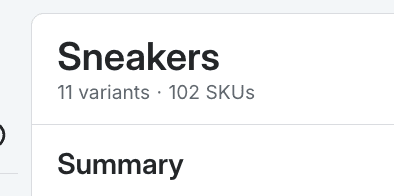
Go to Planning -> Plan & Buy, navigate to the level you want (e.g., Category: Sneakers).
Optionally, use Filters to narrow down your selected variants (e.g. add a season filter).
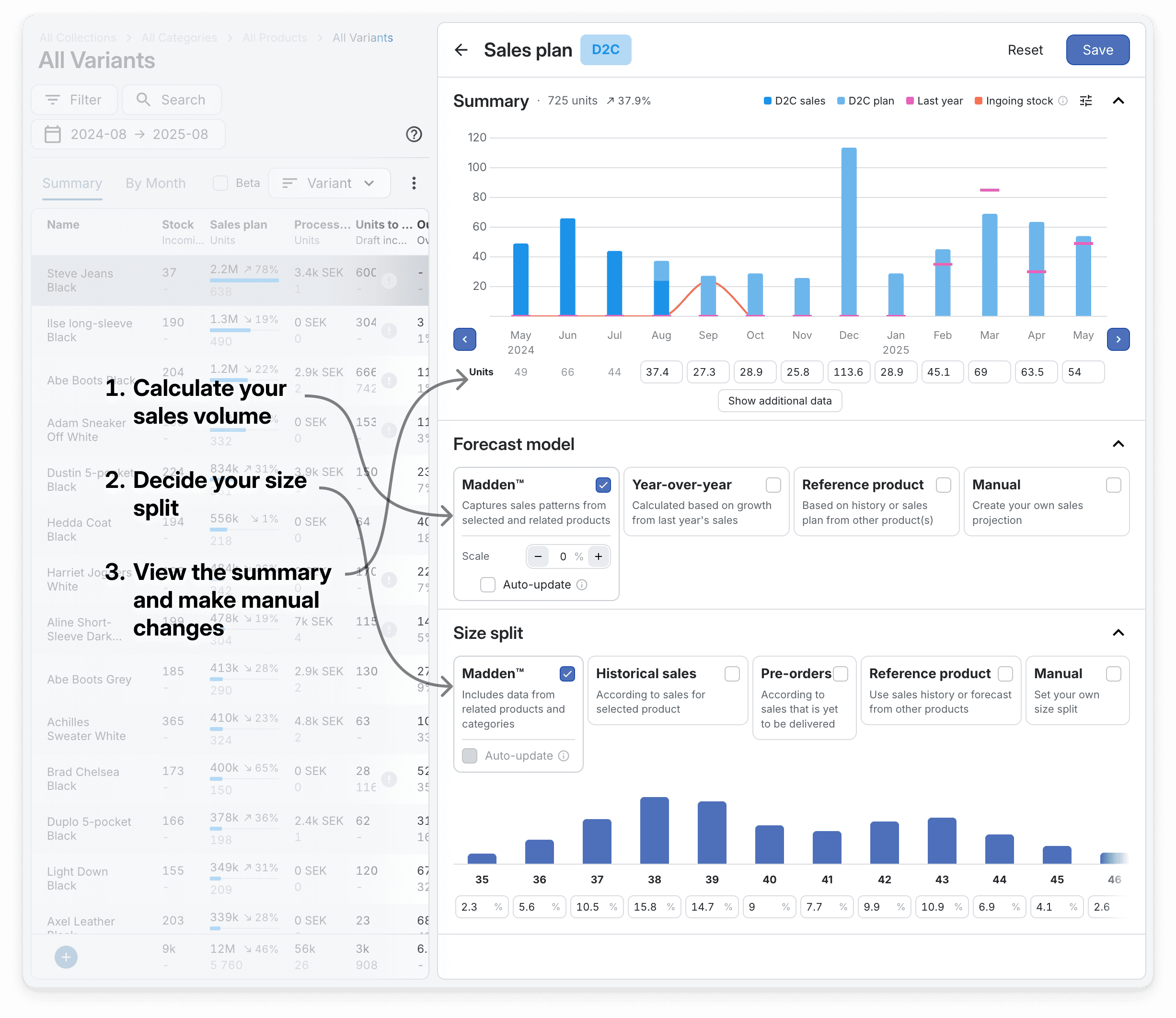
In the Sales plan area, click Set plan.
Under Forecast model, choose Madden™, Year-over-year, Reference product, or Manual.
In Variant split, pick how to allocate across variants: Scale, Units, or Distribution.
Scale — Enter a % to scale each variant up/down from the model result.
Units — Type the exact units per variant; the app converts this to an equivalent scale.
Distribution — Set the % share per variant for a total monthly units target (great for including new products without history).
Adjust values per variant as you wish.
Click Save (top right).
Variant split modes
Scale — Enter a % to scale each variant up/down from the model result.
Units — Type the exact units per variant; the app converts this to an equivalent scale.
Distribution — Set the % share per variant for a total monthly units target (great for including new products without history).
Tips
Use Filters to plan across any mix (brand, season, category); this is often faster than navigating the hierarchy.
Distribution lets you plan new variants alongside existing ones by splitting a single monthly total.
Size split appears only if all selected variants share the same sizes; otherwise the size split related to the chosen model, or according to historical sales for any selected reference products, is used.