Create a Sales Plan for a Single Variant
Learn how to set a sales plan with the right forecast, size split, and (optionally) segment split.
Prerequisites
You have access to Planning.
Available plan types (e.g., D2C, B2B) depend on your account configuration.
Create your sales plan
In the top bar, open Planning -> Plan & Buy.
Drill down with the blue hierarchy arrow until you reach the Variant you want.
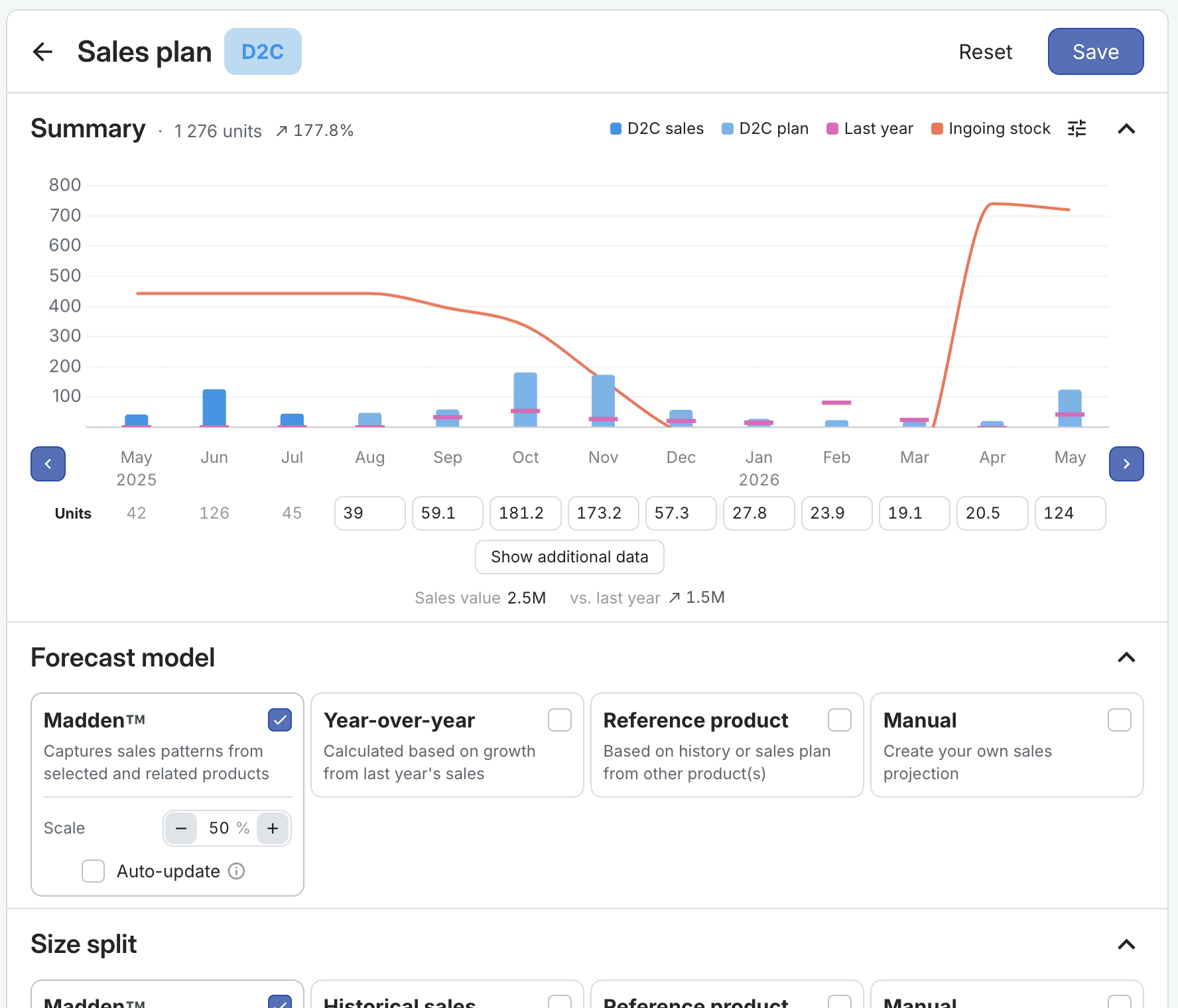
In the right panel under Sales plan, click Set plan.
Under Forecast model, pick a method (all can be scaled, and you can tweak monthly Units afterwards):
Madden™ — Data-driven forecast from related products, trends and seasonality.
Year-over-year — Uses last year’s sales; adjust with Scale.
Reference product — Base on one or more comparable products (history or their plan; average or sum).
Manual — Enter your own monthly plan.
In Size split, select your method (Madden, Historical sales, Reference product, or Manual). You can make manual changes to some or all sizes, click Fix distribution to make all sizes sum to 100%.
If editing multiple segments: In Segment split, select method and tweak the proportions if needed.
Click Show additional data under the graph to edit the projected discount per month, or view estimated stock levels and sell-through.
Tips
Use Refresh on Forecast model or Size split to re-apply a saved setup later with updated data.
Click the graph Settings icon to toggle Show ingoing stock and switch Units/Value. When viewing Value, you can also view the Budget (if one exists).
You can override the number of units for any month manually.